How to Use SpinFlipRoll
Last updated November 1, 2026
Type a list, spin it, and read what it lands on. Everything else is below.
Whether it's fair and where your lists go are in the FAQ. The odds behind the coin and the dice, and how to run a raffle or split a group into teams, are in the guides.
Your First Spin
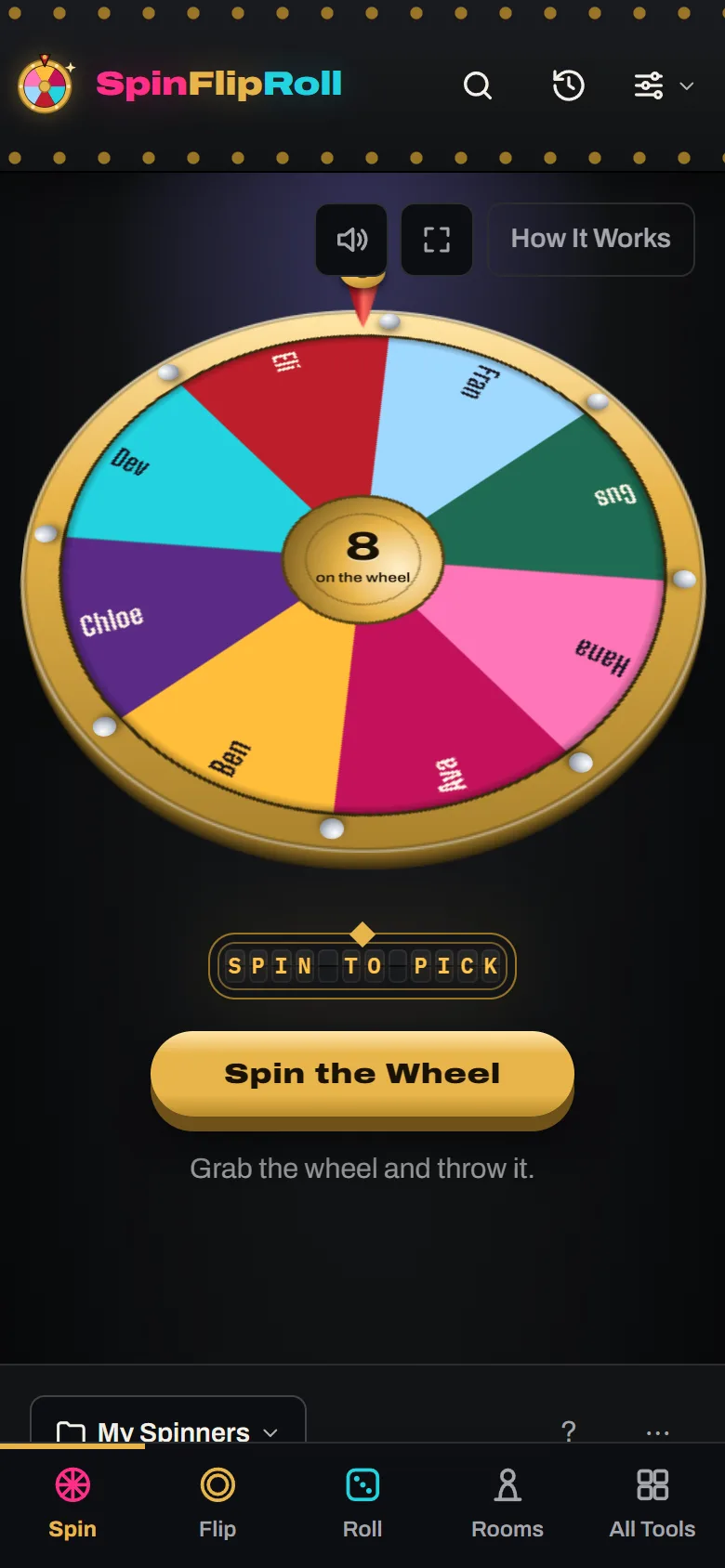
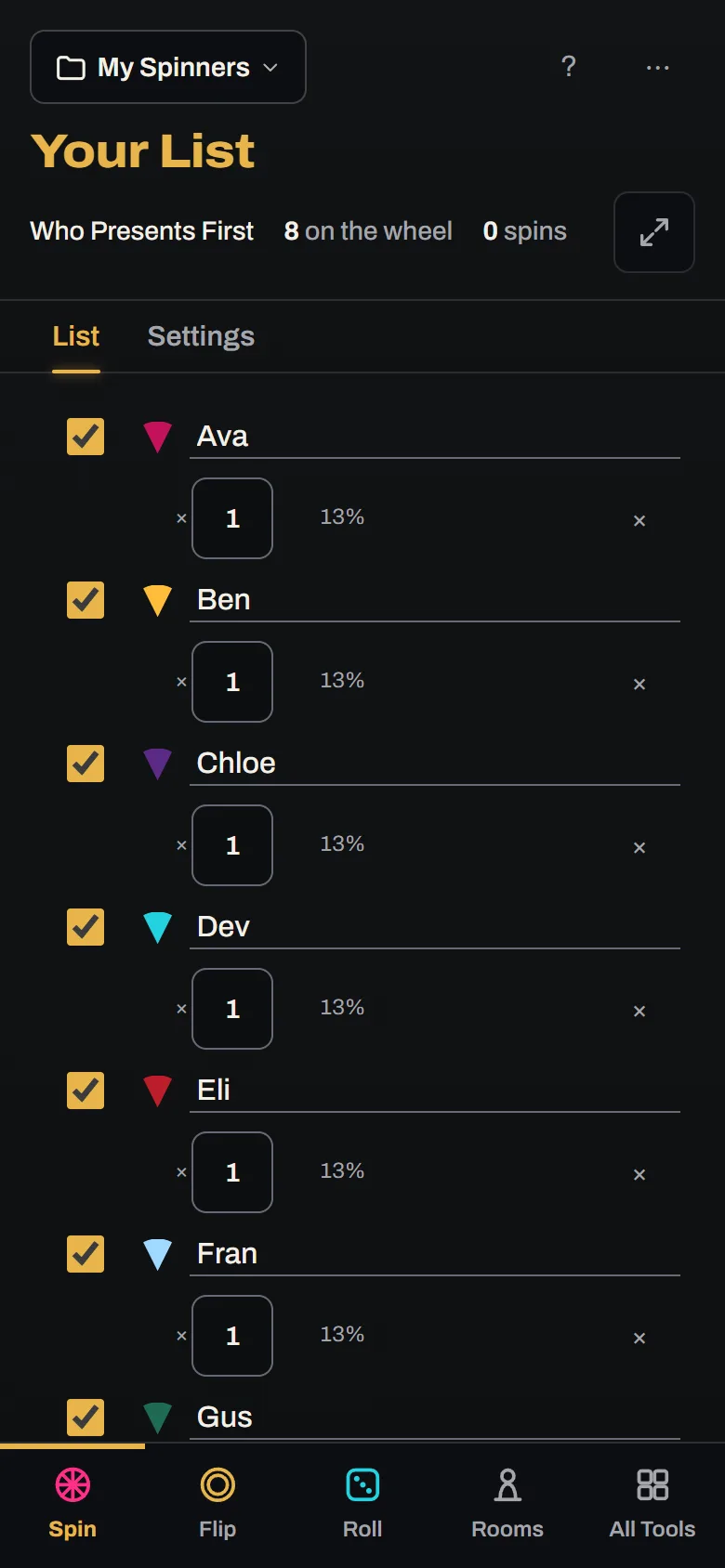
Type an entry into the box at the foot of the list and press Enter, then do it again for each entry after that.
 Open the picture full size, opens in a new tab
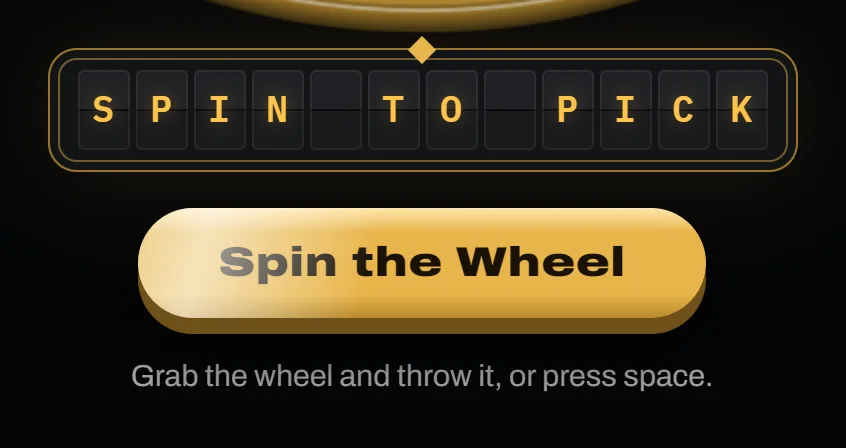
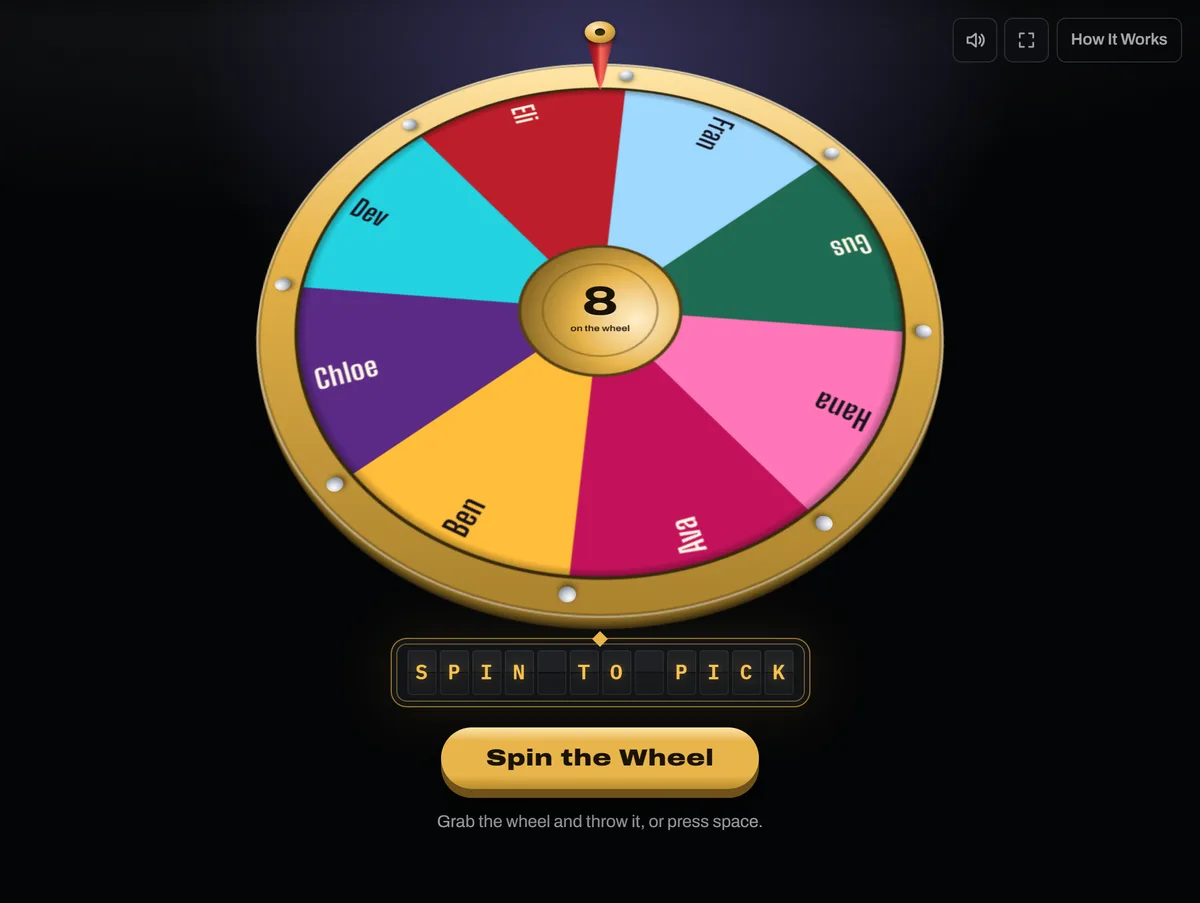
Spin. Press the big Spin the Wheel button under it, press Space, or grab the wheel and throw it.
 Open the picture full size, opens in a new tab
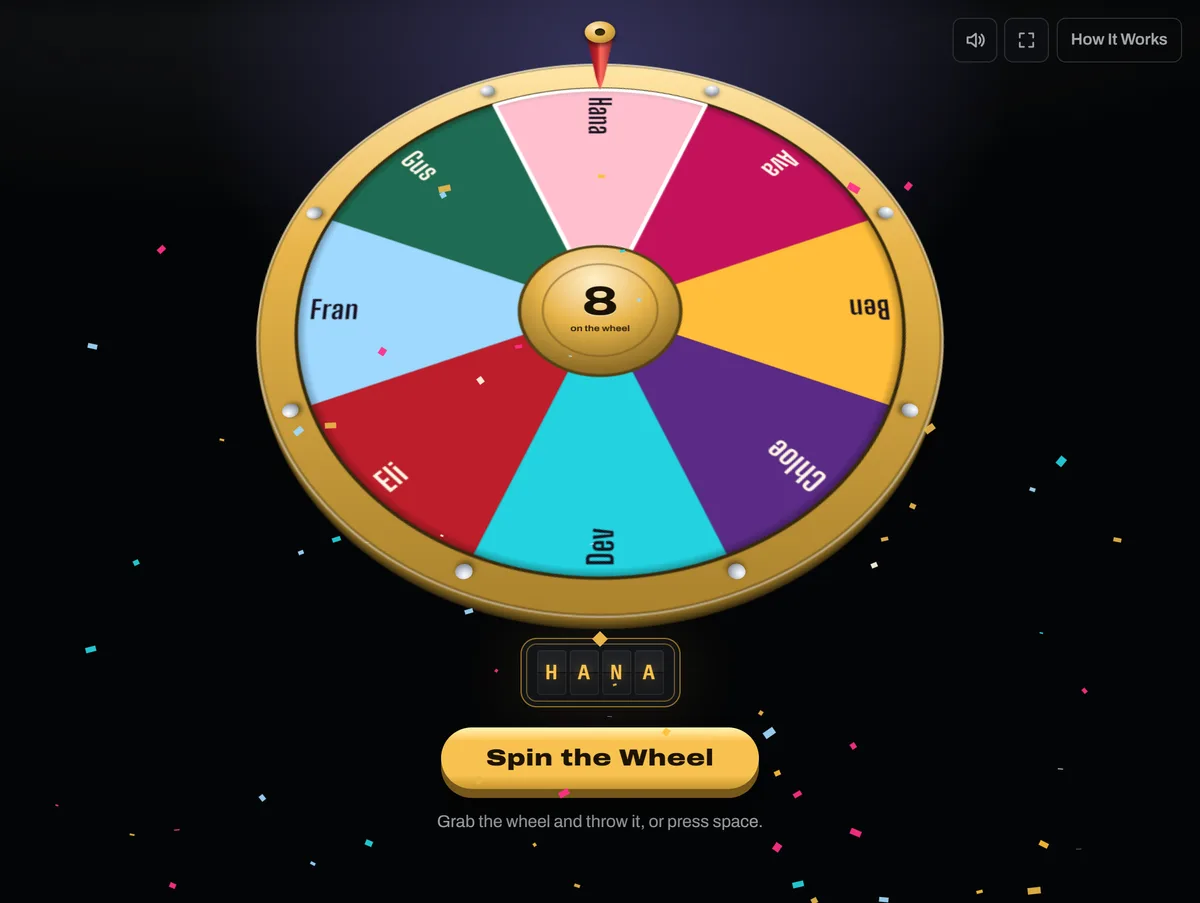
Read the winner. The pointer stops on it, the wedge lights up, and the board spells it out.
 Open the picture full size, opens in a new tab
Your Entries
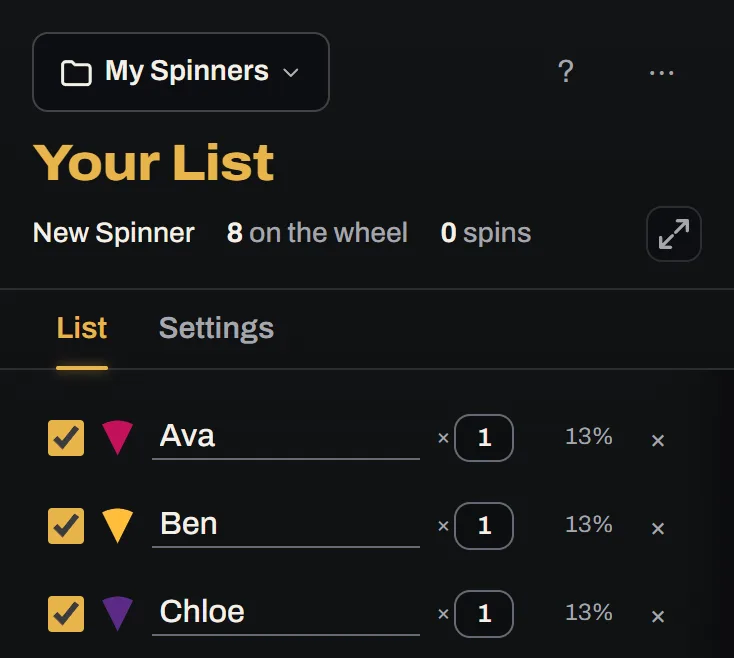
The list down the side is what goes on the wheel, and every row has the same few controls.
 Open the picture full size, opens in a new tab
A Whole List at Once
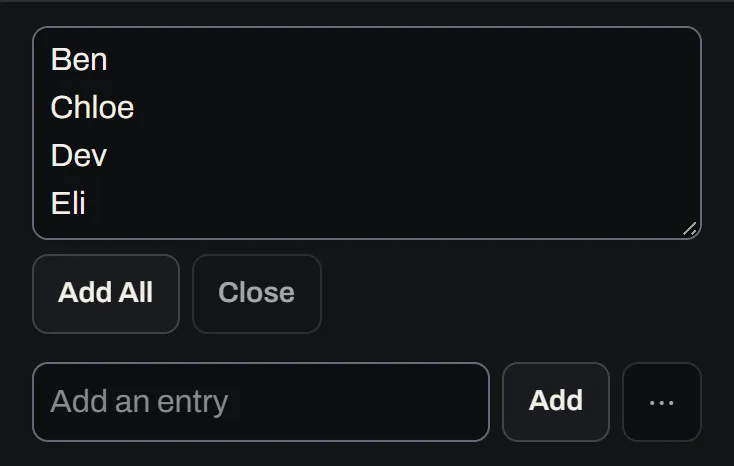
Open the More for This List menu beside Add and choose Paste a List. Put one entry on each line and press Add All. A list holds up to 500.
 Open the picture full size, opens in a new tab
Bigger Chances
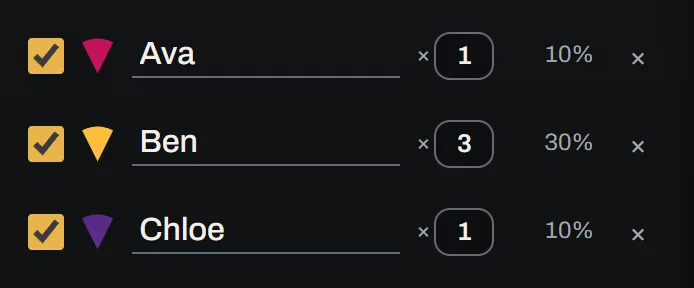
The small number after a name is its weight, from 1 to 9. An entry at 3 gets a wedge three times the size, so it is three times as likely to win. The percentage beside it is its chance right now.
 Open the picture full size, opens in a new tab
A Bigger View
Press Open in a Large View at the end of the line that counts the list, to open it over the page, with its entries in columns, so a long list is all in view. Everything works there the same way. Press Close or Esc to put it back beside the wheel.
Out for a Round
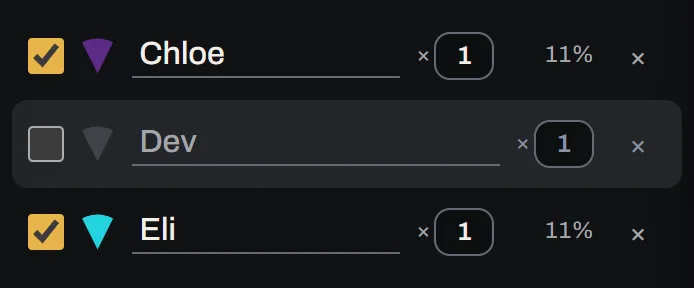
Untick an entry to take it off the wheel without deleting it. Tick it again to put it back.
 Open the picture full size, opens in a new tab
Undoing a Removal
Press Undo on the strip that comes up at the bottom of the page. The strip goes away after a few seconds, unless you got there with the keyboard or turned on Keep Messages Up in Settings.
 Open the picture full size, opens in a new tab
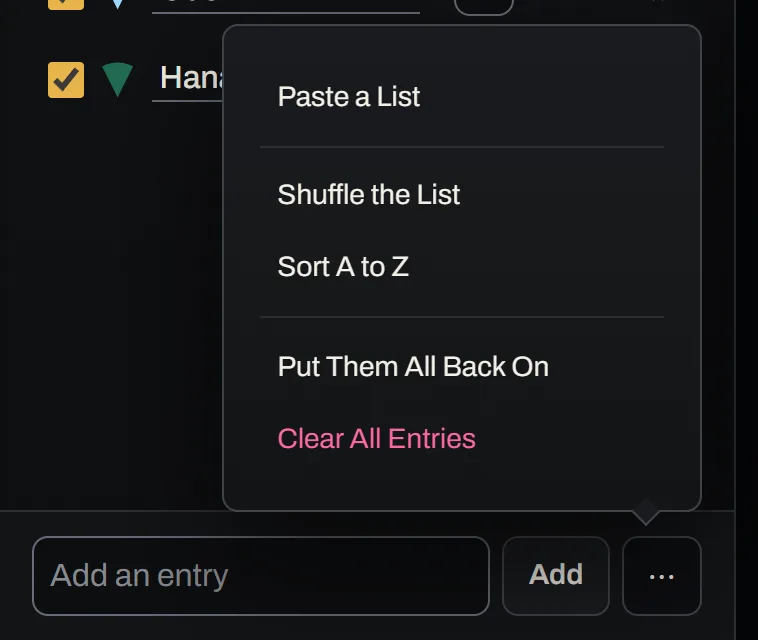
The More for This List Menu
Everything else you can do to the whole list: paste into it, shuffle it, sort it A to Z, put every entry back in play, or clear it. Sharing the list is under Share at the top of the list, beside How It Works.
 Open the picture full size, opens in a new tab
Spinning
You can spin three ways, and all of them are fair.
- Press the big Spin button under the stage. On the two wheels with handles it says Pull or Haul instead.
- Press Space, as long as you are not typing in a box.
- Grab the wheel and throw it. It goes however you threw it, and whatever the pointer is over when it stops has won.
How a Wheel Spins
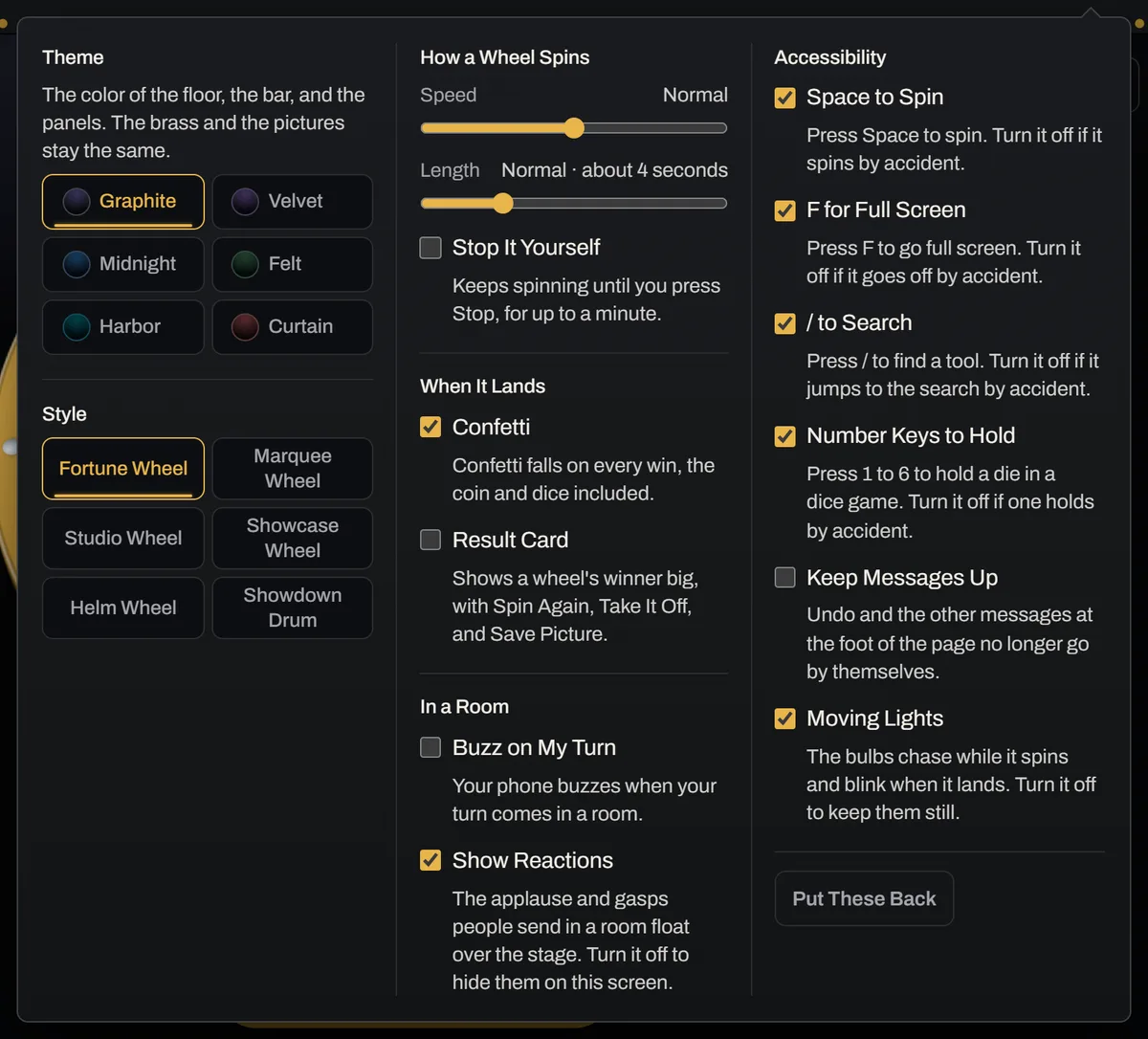
Open Settings at the top right to choose how fast a spin goes and how long it lasts. These settings apply to the button and to Space, while a wheel you throw by hand goes however you threw it. Turn on Stop It Yourself to decide when it ends, and the wheel keeps going until you press Stop, or for a minute at most. The coin and the dice are thrown their own way, so these settings and the result card are for the wheels.
 Open the picture full size, opens in a new tab
The Result Card
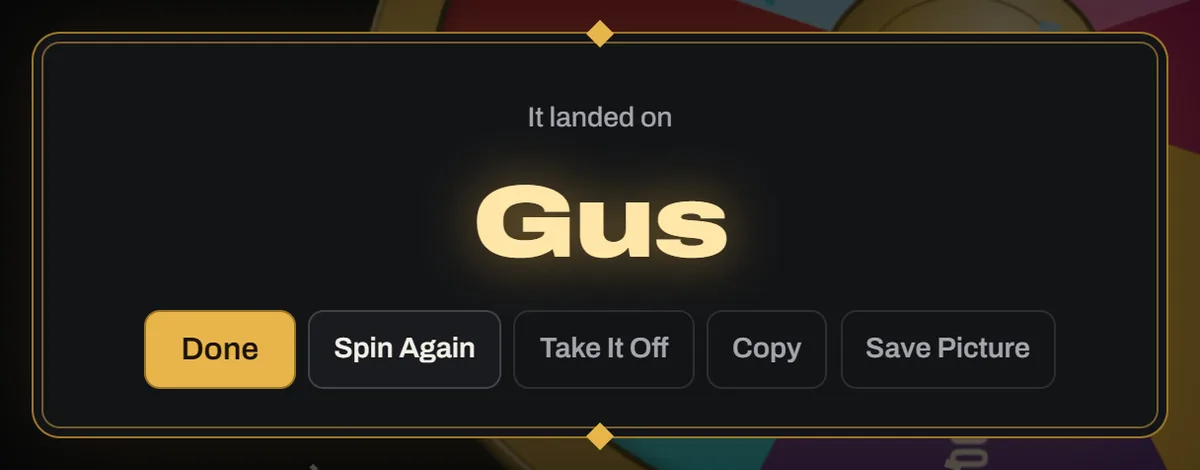
When a wheel lands on something, it also opens big in the middle of the screen. Spin Again goes straight into the next spin, and Take It Off takes the winner out of play. Save Picture makes a picture of the wheel with the winner, the list's name, and the day on it. A phone offers to share it, and a computer saves it to your downloads. If you'd rather keep the win on the board alone, turn off Result Card in Settings. Confetti is there too, if you'd rather not have it.
 Open the picture full size, opens in a new tab
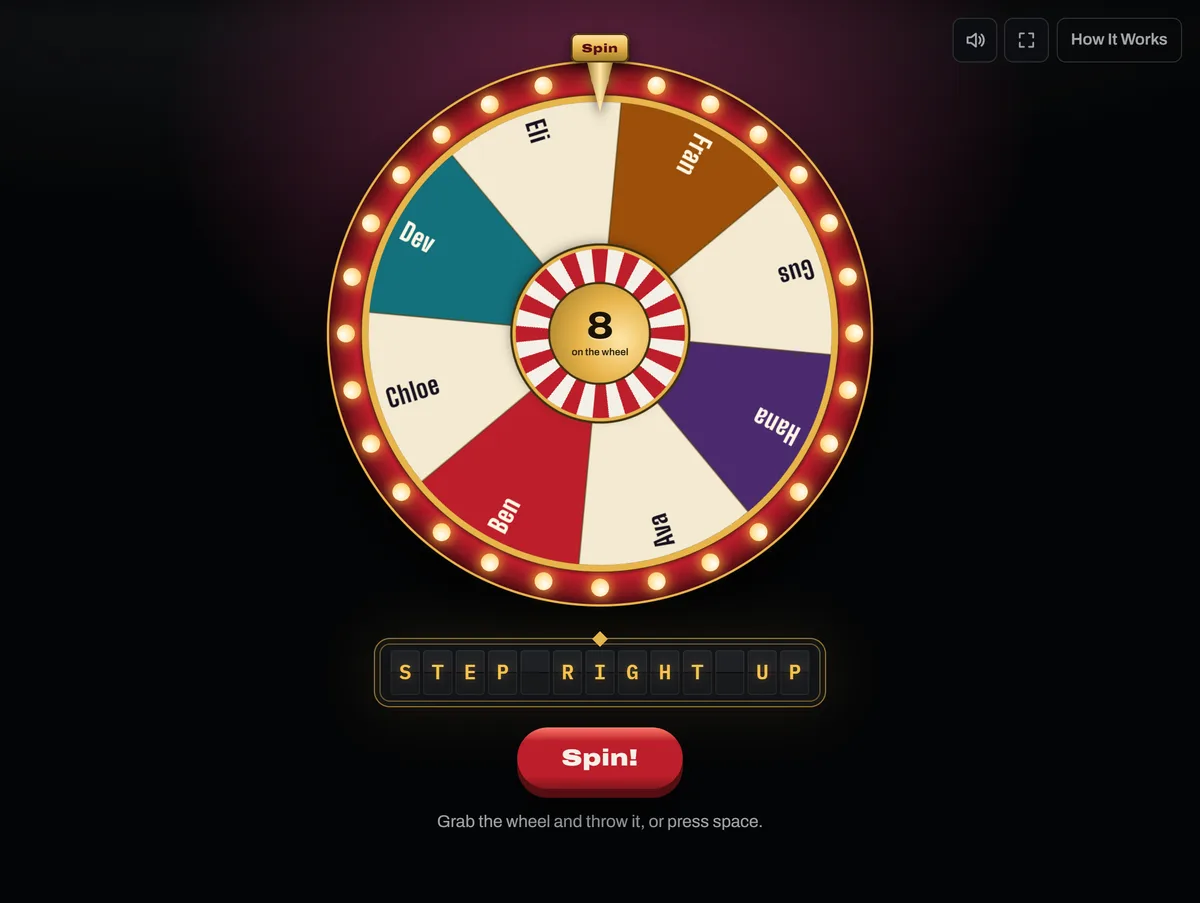
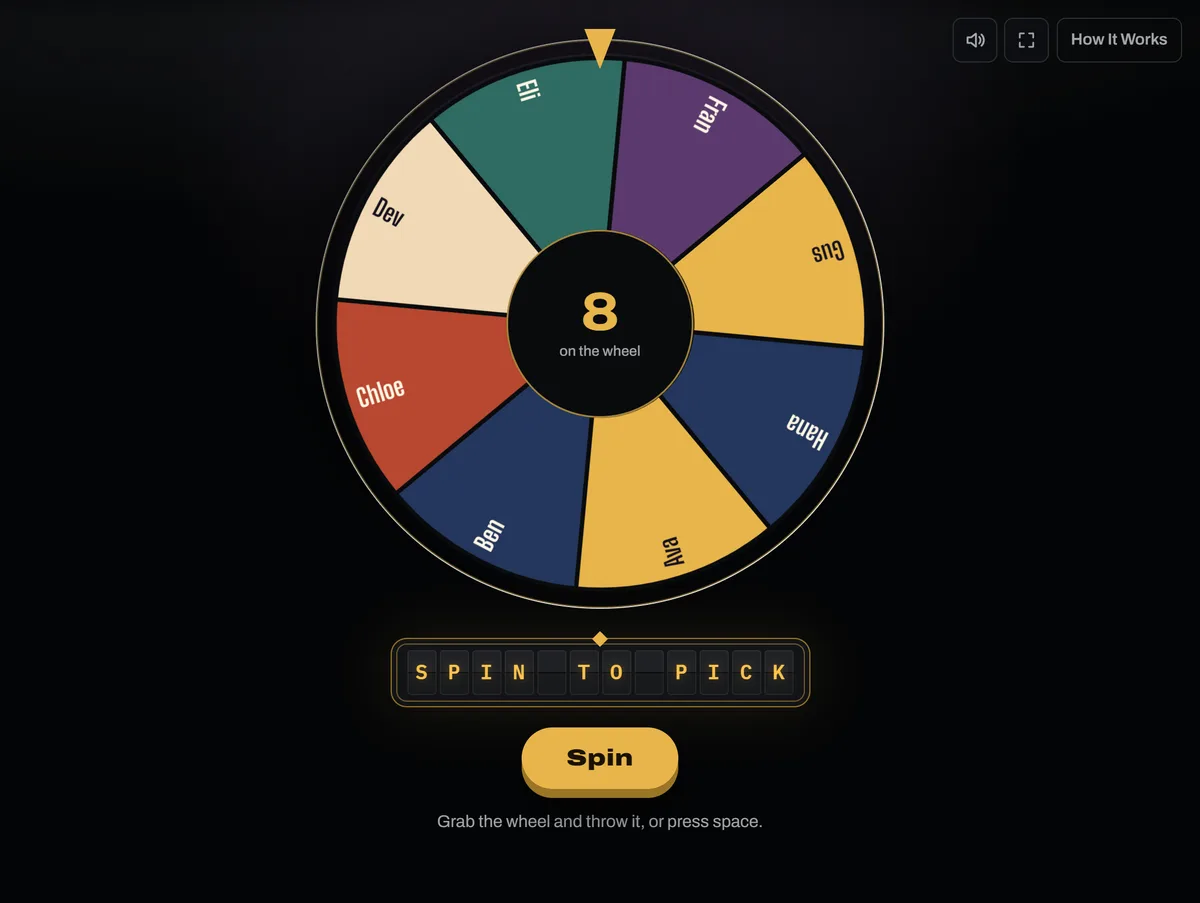
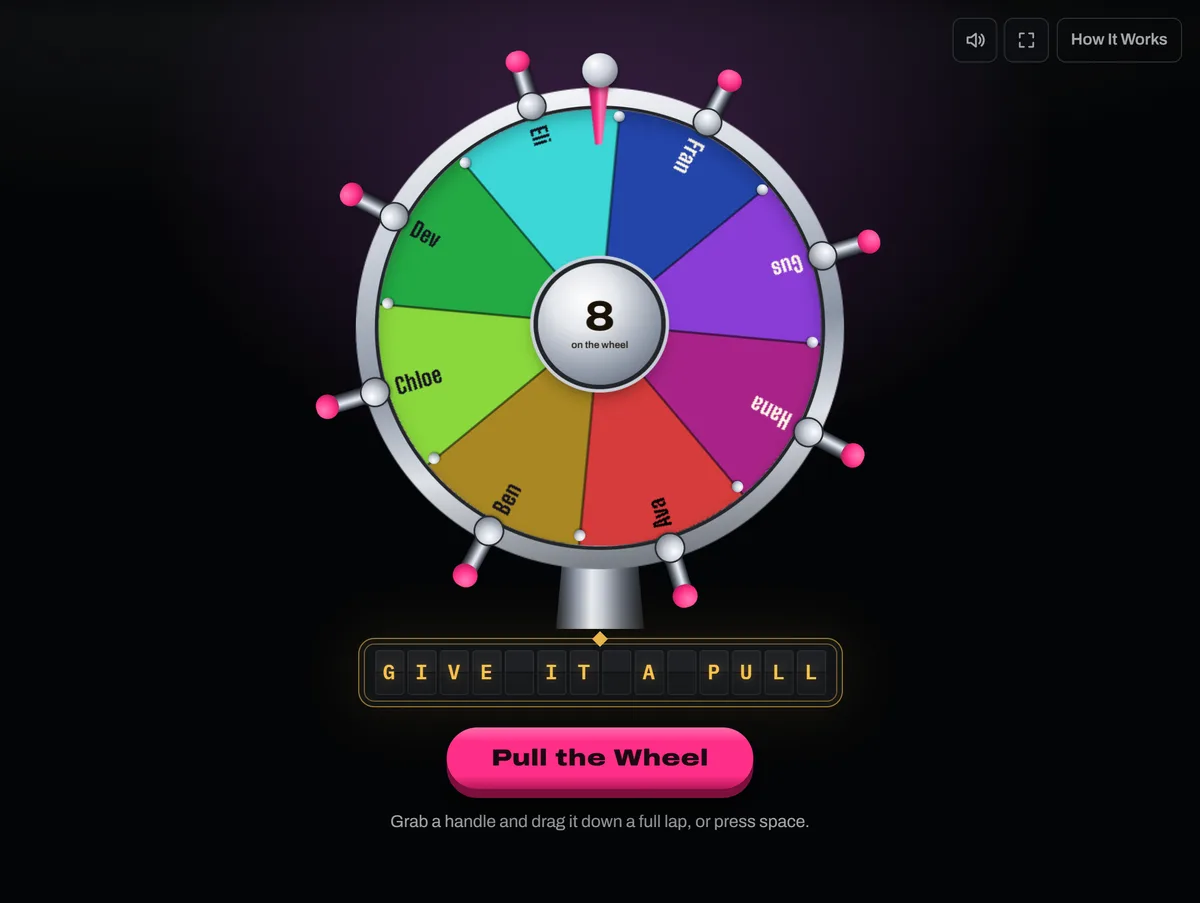
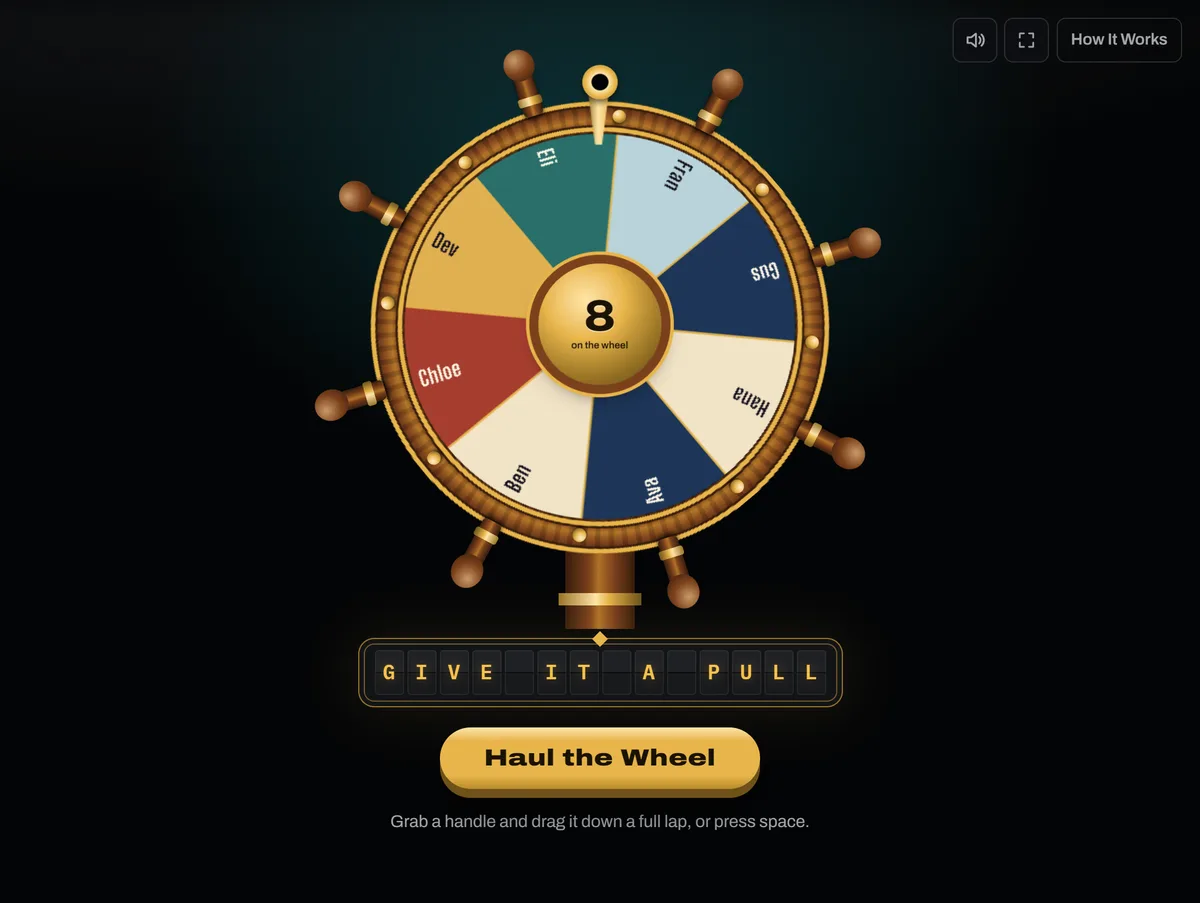
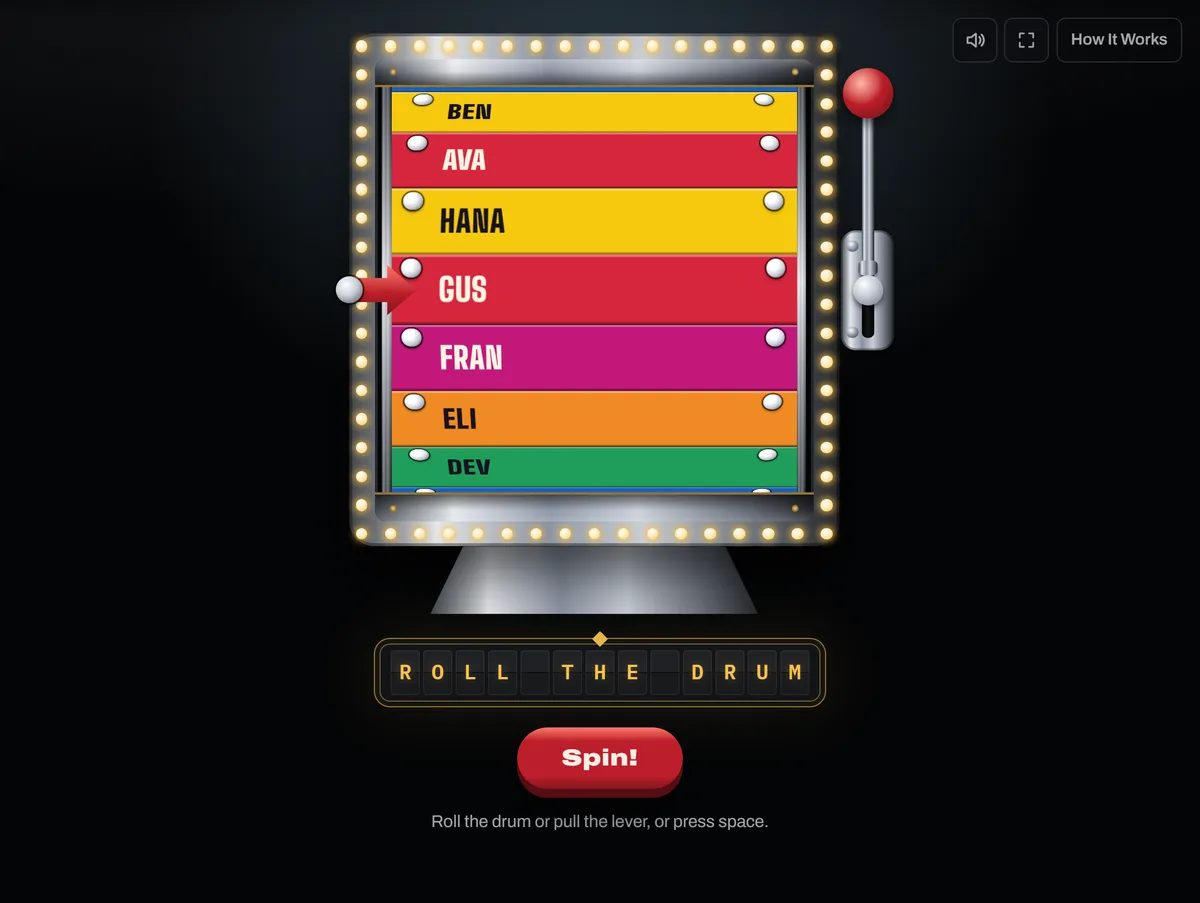
The Six Styles
Pick a style under Settings and every list, example, and tool takes it on. Only the look changes, and the entries and their chances stay the same.
 Open the picture full size, opens in a new tab
 Open the picture full size, opens in a new tab
 Open the picture full size, opens in a new tab
 Open the picture full size, opens in a new tab
 Open the picture full size, opens in a new tab
 Open the picture full size, opens in a new tab
Themes
Settings also has six themes: Graphite, Velvet, Midnight, Felt, Harbor, and Curtain. A theme changes the color of the floor, the bar, and the panels. The brass, the wheels, and the pictures stay the same, and this browser remembers your pick.
Back to contentsAfter a Win
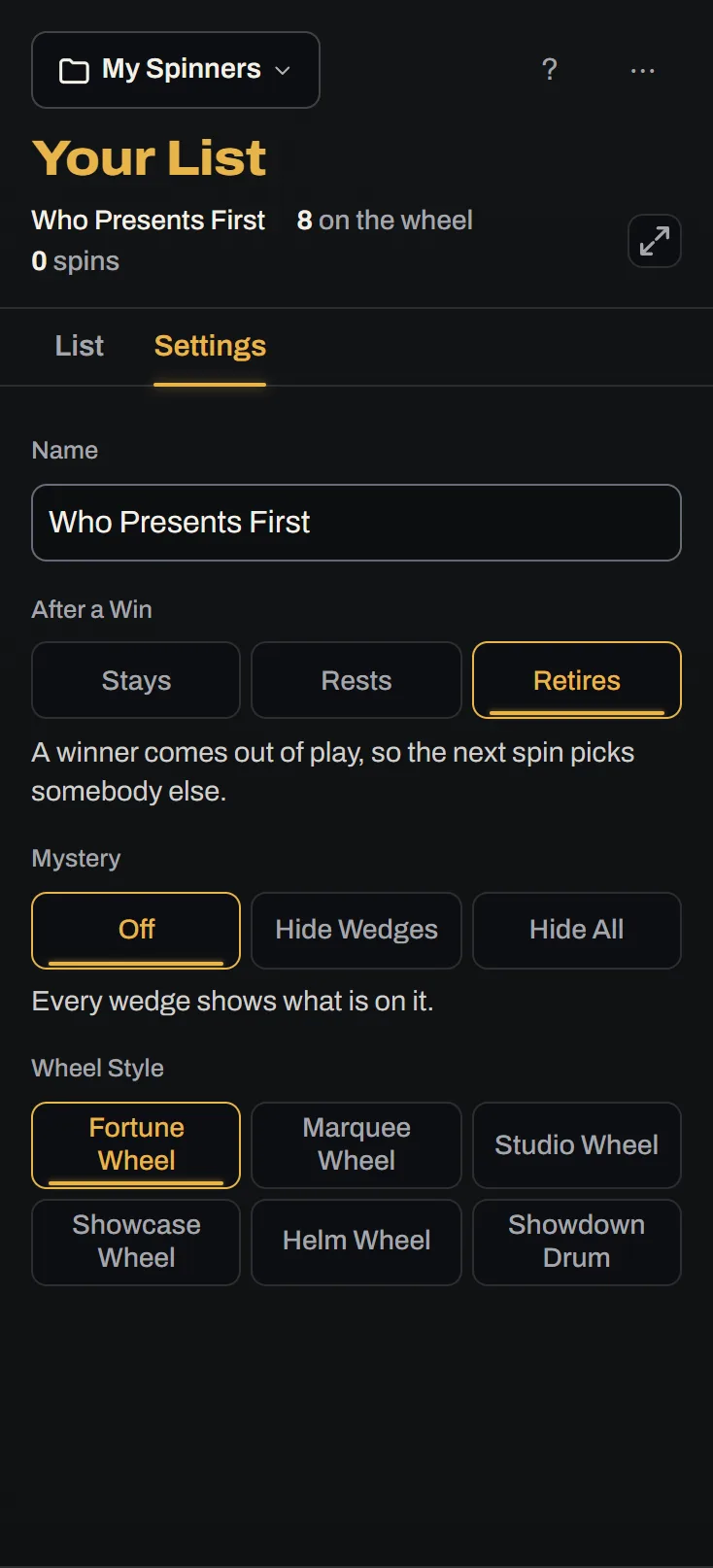
A win can leave the winner as it was, rest it, or retire it. Open the Settings tab at the top of the list and pick one under After a Win.
 Open the picture full size, opens in a new tab
Stays is where a new list starts. The winner keeps its whole wedge and can come up again on the very next spin.
Rests suits a rota, such as a standup or the week's chores. The winner's wedge shrinks to a fifth of its size, then grows back over the next round of spins, one spin for each entry. It can still come up again, just rarely straight away. The list shows its lower chance and marks it resting, and clearing your History puts everybody back to full size.
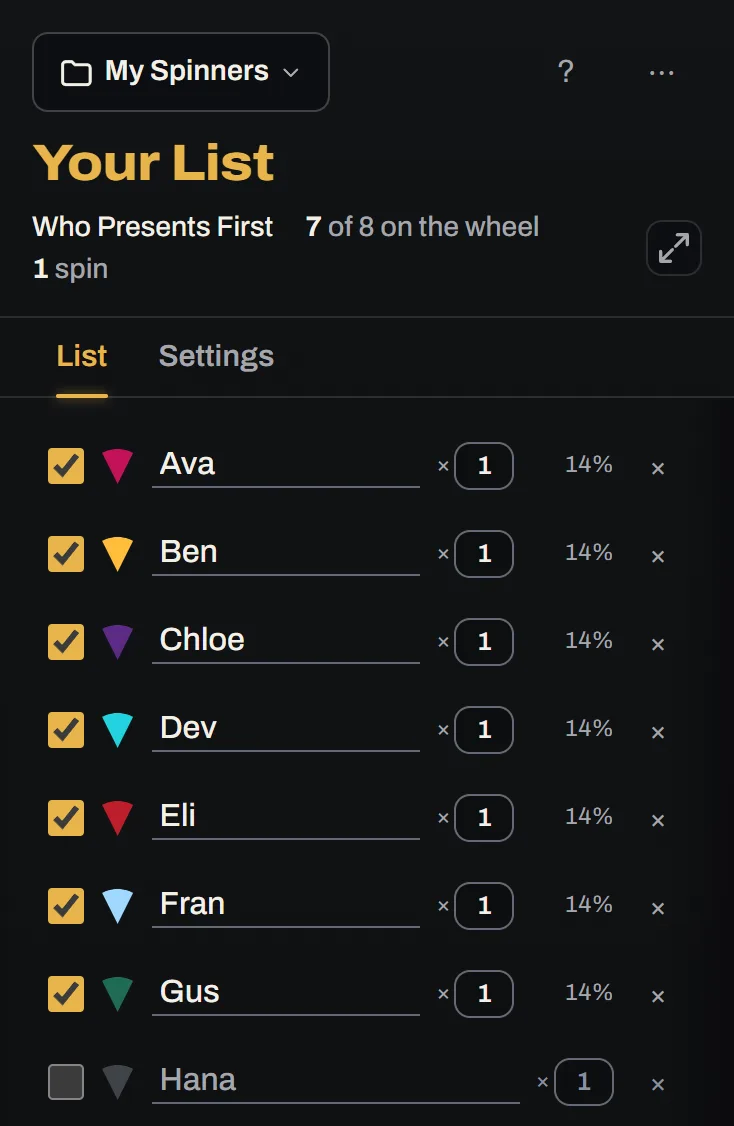
Retires stops it picking the same one twice. Each winner comes out of play as soon as it wins, so the next spin picks somebody else. It stays on the list, unticked, so you can see who has had a turn.
 Open the picture full size, opens in a new tab
When everybody has had a turn, choose Put Them All Back On from the More for This List menu.
Back to contentsKeeping Lists
The spinner opens on an example. Add, remove, rename, or reweight an entry and it becomes your own copy, saved by itself. Ticking entries in and out, its settings, and spinning it change nothing for good. The example stays as it was for next time.
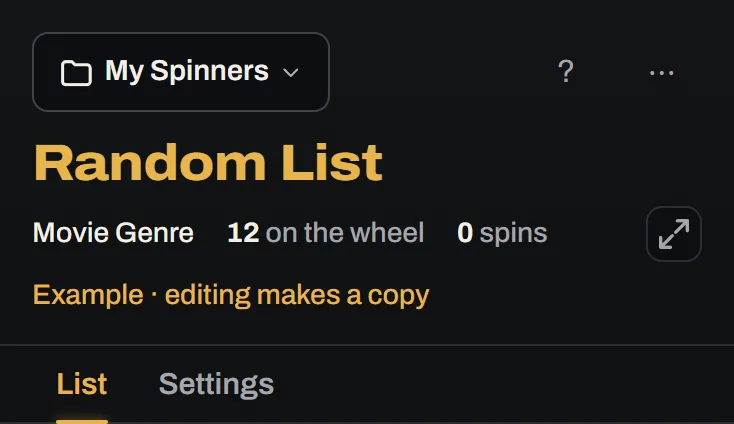
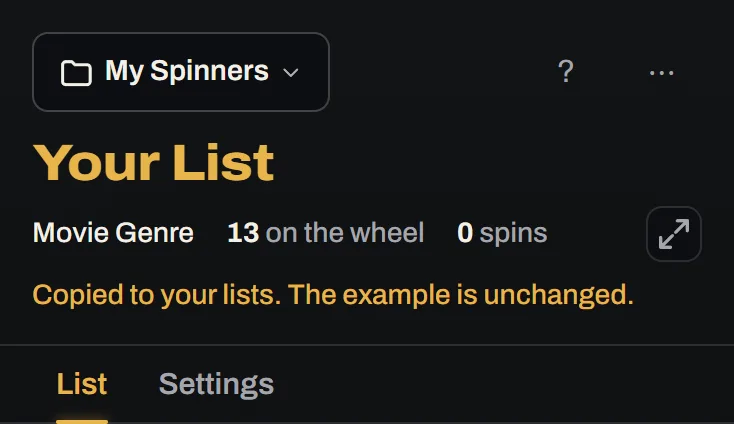
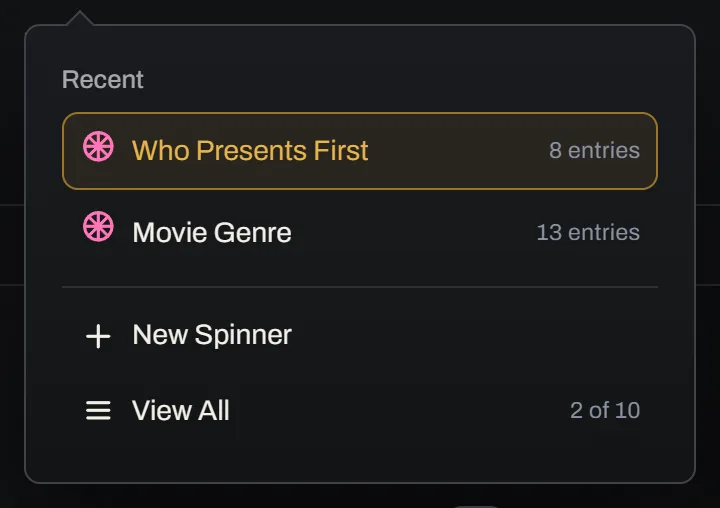
My Spinners, at the top of the list, switches between your lists and starts a new one with New Spinner.
 Open the picture full size, opens in a new tab
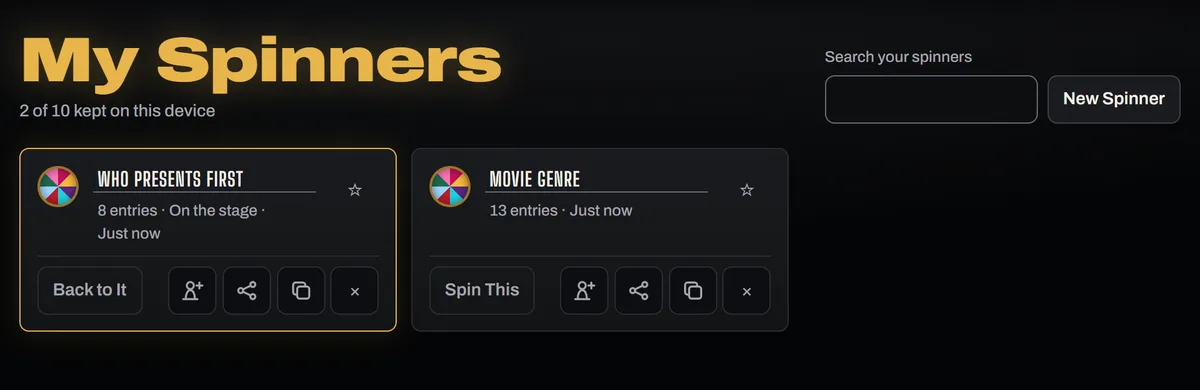
View All shows every list you have kept, up to ten. Pick one back up, copy it, or delete it to make room. A list goes with one press, and Undo in the strip along the foot of the page brings it back with its entries, settings, and winners. Press the star on a list to keep it at the top here and in the My Spinners menu, and press it again to let it go back among the rest.
 Open the picture full size, opens in a new tab
Your lists are kept in this browser and nowhere else, until you open a room with one. Clearing the site's data removes them, and another browser or device starts empty. To take a list with you, send it to yourself as a share link.
Back to contentsSharing a List
Open Share at the top of the list and choose Share This List, and a link to the whole list is copied, ready to paste into a message. On a phone, your phone's own share sheet opens instead.
 Open the picture full size, opens in a new tab
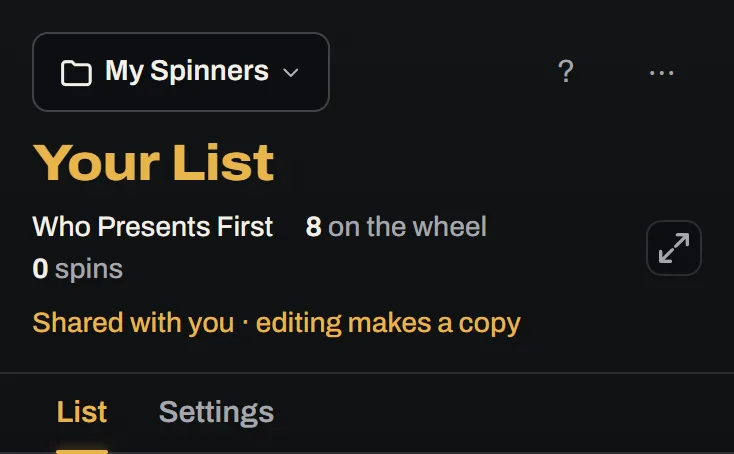
Whoever opens the link sees the same entries, weights, and settings. If they change it, they get a copy of their own and yours stays as it is.
 Open the picture full size, opens in a new tab
The list is part of the link, so it is never sent to us or kept on a server.
Back to contentsRooms
A room puts one pick on many screens. A host opens it, everybody else joins with its code or its link, and every screen spins, flips, rolls, or deals the same way and lands on the same result. It suits a class watching a projector, a party with a phone each, or a team on a call.
Open a Room
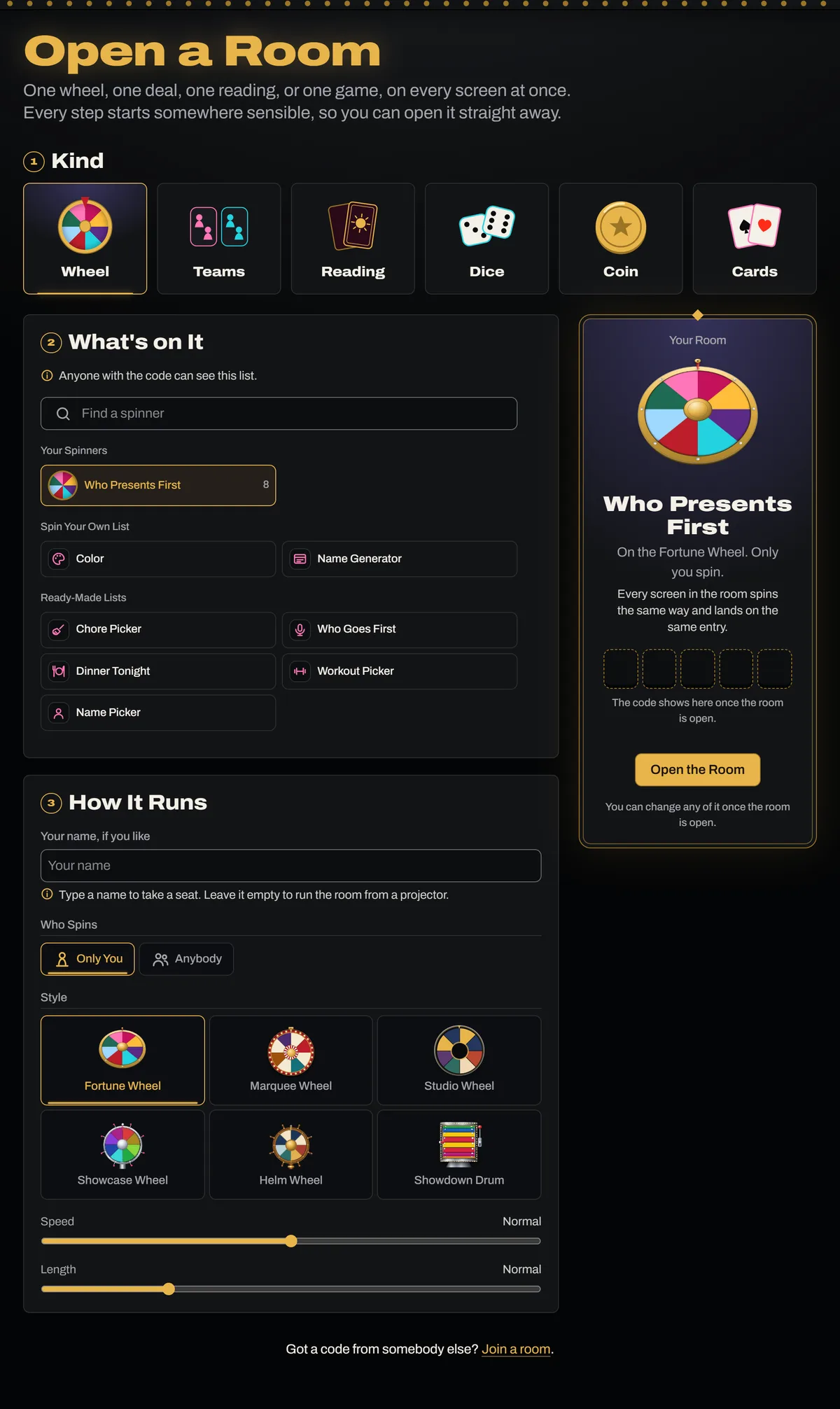
To open one, open Rooms in the bar and choose Open a Room, or go to Open a Room. Three steps come down the page.
- Kind is a wheel, teams, a reading, dice, the coin, or cards.
- What's on It is the list, names, reading, or game.
- How It Runs is who presses and how, and your name if you want a seat. Leave the name empty to run the room from a projector.
Your Room, beside the steps, fills in as you pick, with Open the Room at its foot, and you can change any of it once the room is open. The room button beside a list on My Spinners comes there with that list already chosen, and a tool's own page has a way in too, such as Play this in a room.
 Open the picture full size, opens in a new tab
The room takes a copy of the list, and the one you keep stays as it is. A list of more than 500 entries, or one with very long entries, is too big to send.
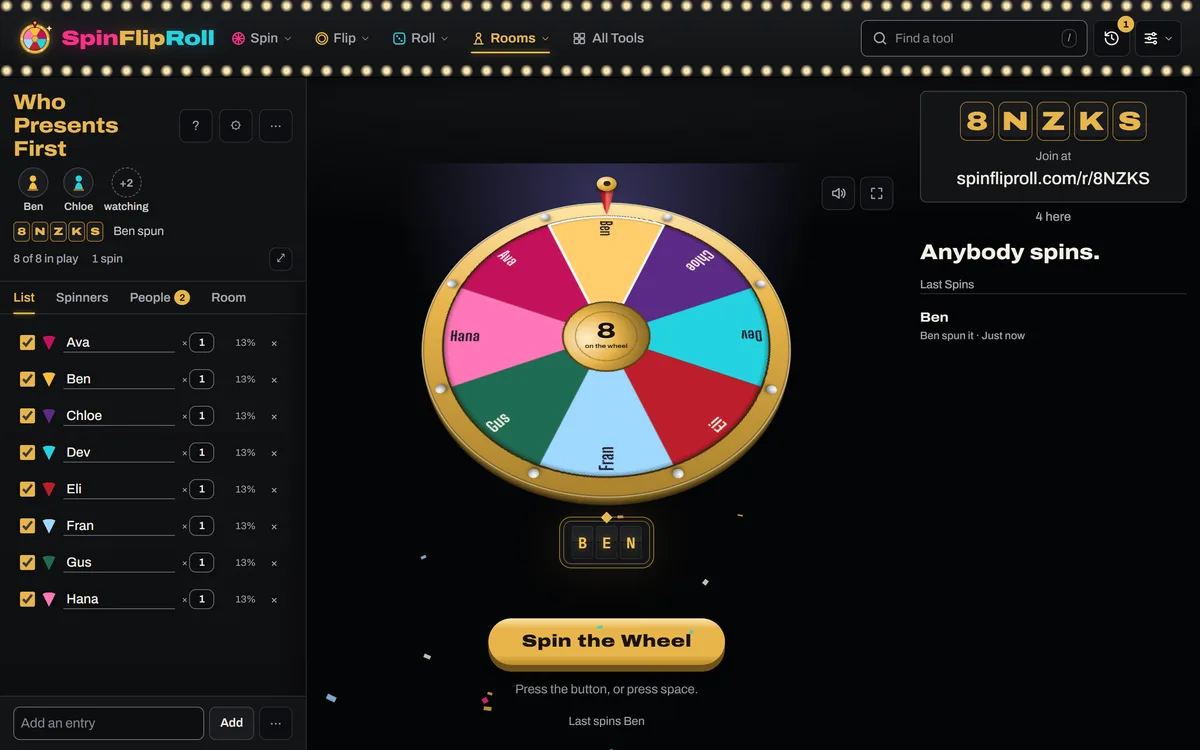
The room's code is five letters and numbers, such as K7PQ3, with the ones that look alike left out. It sits over the stage, large enough to read across a room, beside the address to type it at.
- Press it to copy a link that goes straight in, or on a phone to send it with the phone's own share sheet.
- On a narrow screen it folds into one line with how many are here, so the stage and its button fit the first screen. Press the line to open the whole code.
 Open the picture full size, opens in a new tab
Join a Room
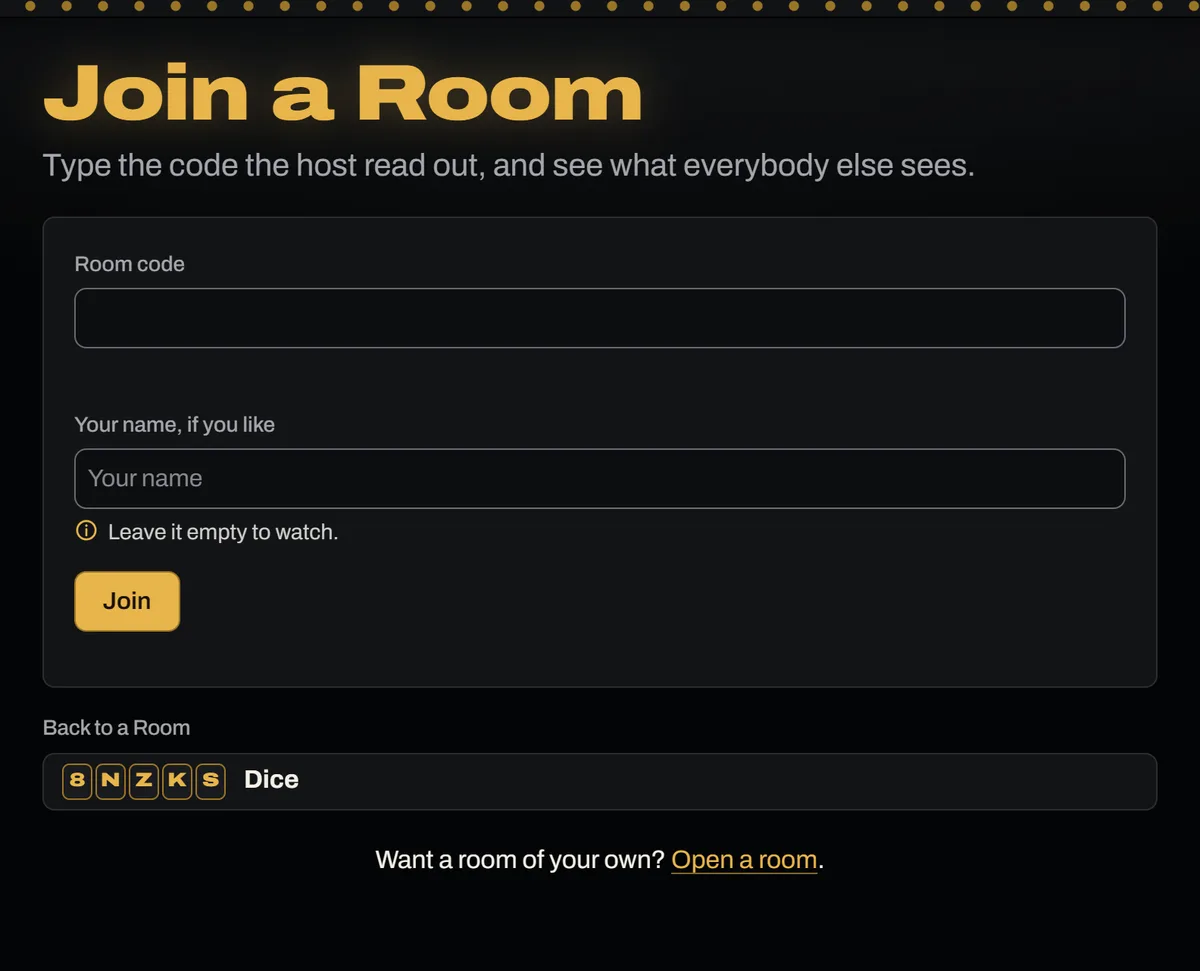
To join, type the code at Join a Room in the Rooms menu, or open the link. A phone needs nothing but its browser, and there is no account to make. Type your name there too and you take a seat as you come in, or leave it empty to watch. Once the five characters are typed, the page says what the room is, such as Farkle, how many are in or that nobody is yet, and who is hosting when the host has a seat. If no open room has the code, it says so.
A code that cannot get you in ends on a card. No Room Here means the code is mistyped or the room has gone, This Room Has Closed says it ended, and This Room Is Full offers Try Again. Seats can run out before the room does. Then you are told every seat is taken and you can still watch.
 Open the picture full size, opens in a new tab
Who's in the Room
Nobody needs a name to watch. A name gets you a seat, and a seat is what lets you do these.
- Play a dice game, High Card, or Higher or Lower.
- Get dealt into teams.
- Be handed a reading.
- Call a coin flip.
- Send reactions.
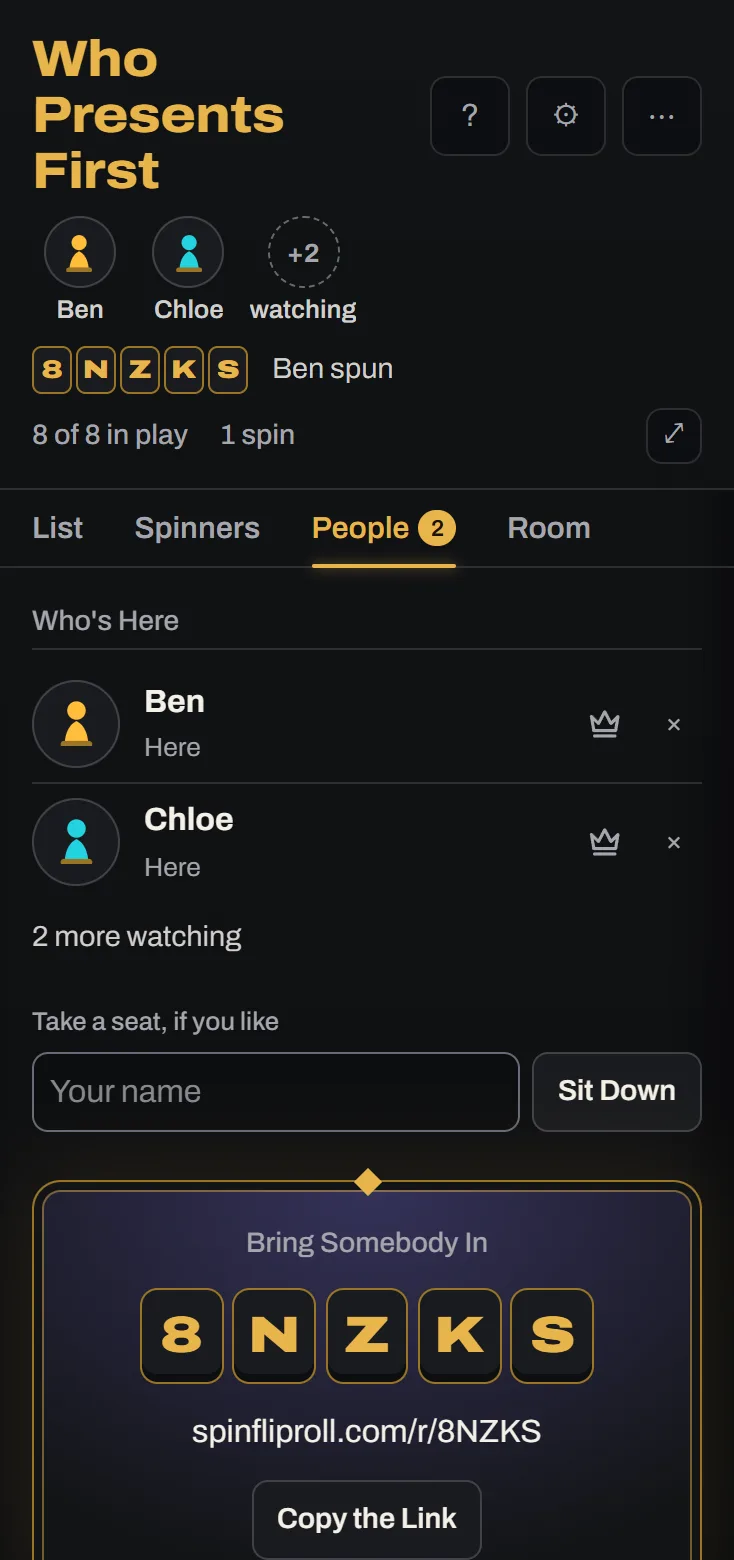
To take a seat, type a name of up to 24 characters under Take a seat, if you like and press Sit Down, or press Sit Down on the line under the code as you come in watching. The room lists you under Who's Here, on a pawn of your own. Under everybody, Bring Somebody In shows the room's code and copies its link.
 Open the picture full size, opens in a new tab
A seat belongs to the tab it was taken in.
- A reload keeps it, a second tab is a second person, and a closed tab loses it.
- The name stays on the list as Away for now until the host removes it, or until the room is full and a newcomer takes the place after a minute.
- A seat that has been away a minute is also left out of a team deal or a new game.
- A room holds 300 screens, and 50 of them can have seats.
There is no Leave button. To leave, close the tab. The host can take a seat away with the cross beside a name, pressed twice. That person carries on watching, is told the host took their seat, and can sit down again. The host can also hand the room to anybody who is here, with the crown beside their name, pressed twice. The host's controls move to that person's screen at once, every screen says who the host is now, and the new host can hand it back the same way.
Playing From Your Phone
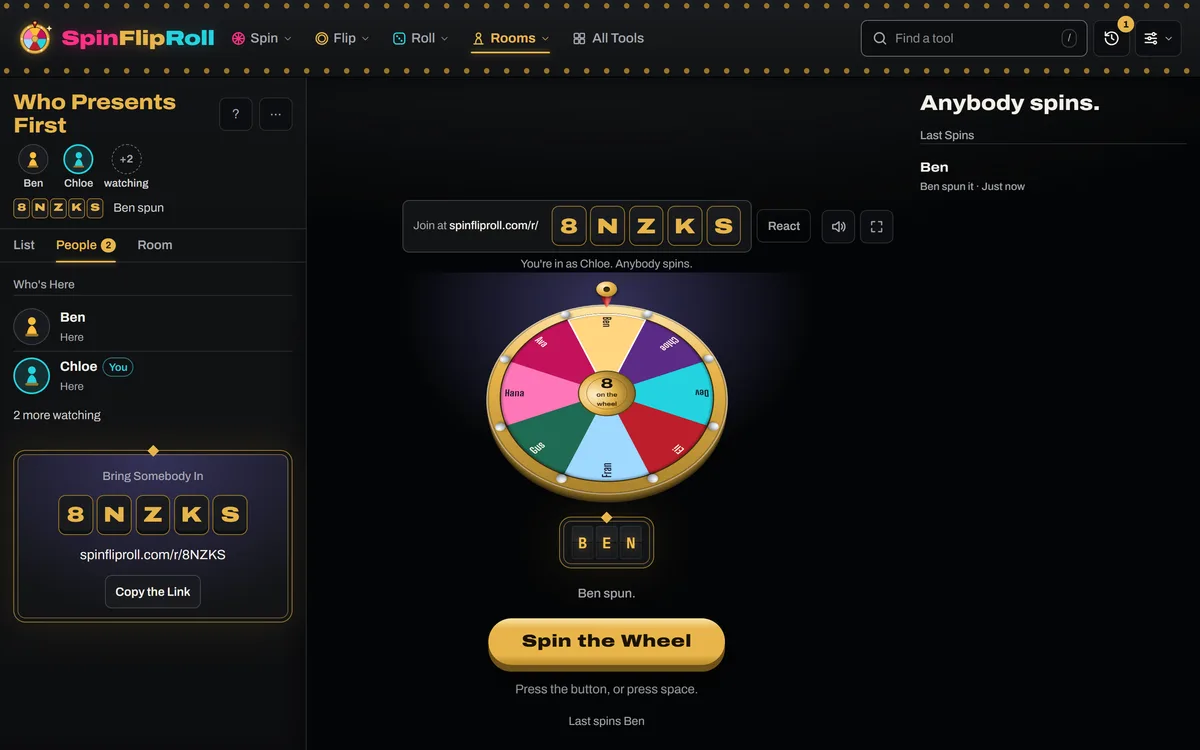
A guest's screen shows the same wheel, stopped in the same place. One line under the code says what is going on. It says that the connection dropped and is coming back, that it is your turn, or who you are in the room until your first press. Only the button a person may press is lit, with a line saying who presses. The rail opens on the people in the room, or on the List tab while a game is under way.
At the foot of the stage one line says how everybody stands, with whoever leads in brass and your own seat named You: each player's total in a dice game, rounds won or longest runs in the cards, the coin's score and the callers, and the last few results on a wheel or the plain dice. On a short phone it gives way to the press, and a dice game's scores are still on the List tab.
 Open the picture full size, opens in a new tab
Your phone tells you when your turn comes in a dice game, High Card, or Higher or Lower, and when a reading is handed to you. The board says You're Up for a moment, the light swings down to your buttons, a short chime sounds while the stage's sound is on, and the line under the code says it is your turn. A tab you have left says Your Turn in its title until you come back to it. Turn on Buzz on My Turn in Settings and a phone that can buzz does too, though an iPhone never does. While a game, a sitting, or a reading is under way, or while you have a seat in a wheel or teams room, your screen stays awake once you have pressed something in the room. The host's screen stays awake too while the wheel spins the seats.
A screen reader hears it when the host switches things, with a line such as The host put the room on Farkle or The host switched the coin to Best of 3. Everybody else sees the stage change.
The Board
A screen with no seat that is at least 980 pixels wide, such as the host's laptop on a projector or a television that joined to watch, is the room's board. A phone is never one, and neither is a screen with a seat. To the right of the prop it stands the code large, over the whole link to join by, then who is up and what the room has done: the last flips, spins, throws, or draws, the cards of a reading, the teams, or a game's score and turns. The full screen button in the stage's corner puts the bar and the rail aside for it. A wide screen with a seat gets the same column without the code, saying who is up and the score beside the table. A phone keeps all of it in the List tab.
With a board in the room, a phone with a seat can switch to Controller in the room's menu. It hides the table or the wheel on that phone and keeps the buttons, the line under the board, and the standings, so the press sits near the top of the screen while everybody watches the board. Show the Table brings it back. It is offered while a screen with no seat is in the room, and never in a reading, where the cards you pick are the press.
The Rail and the Settings
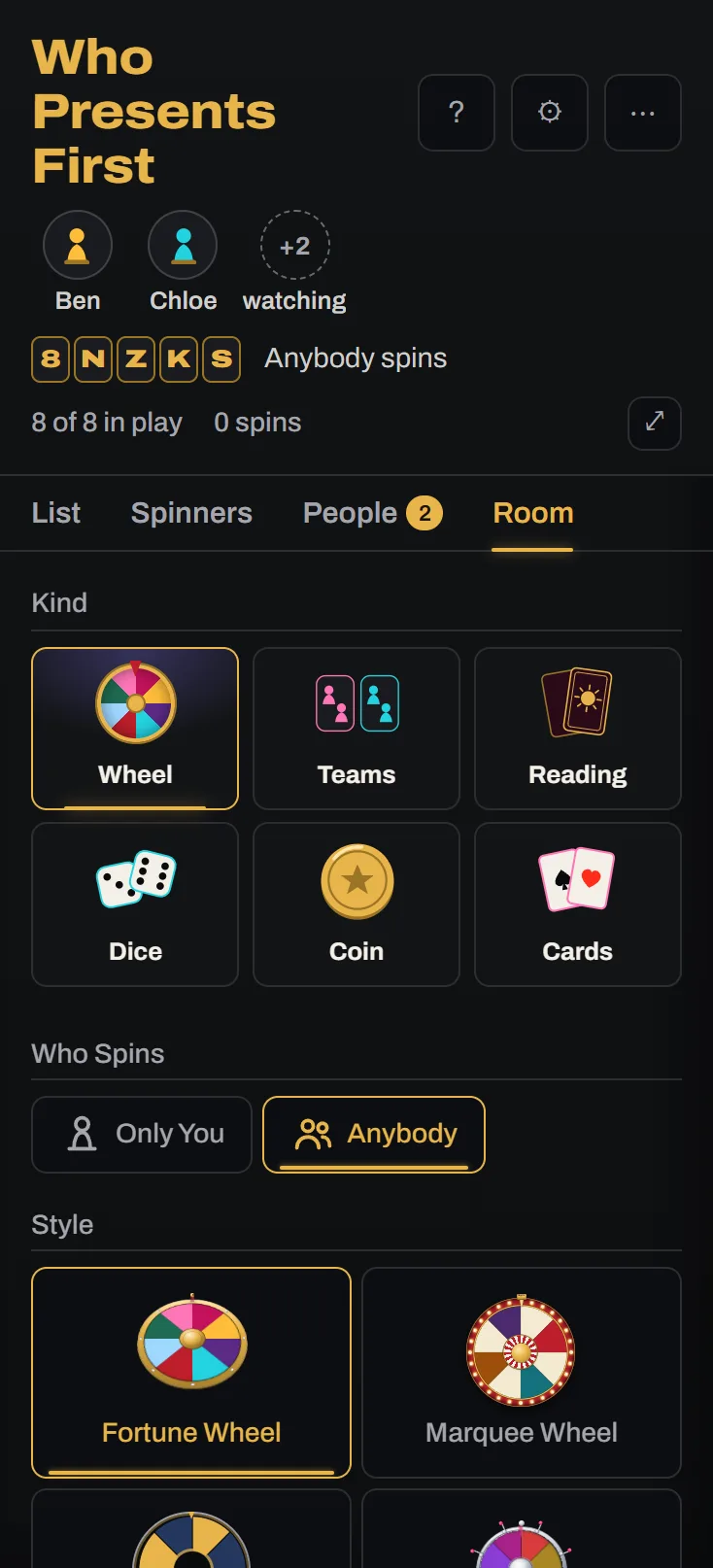
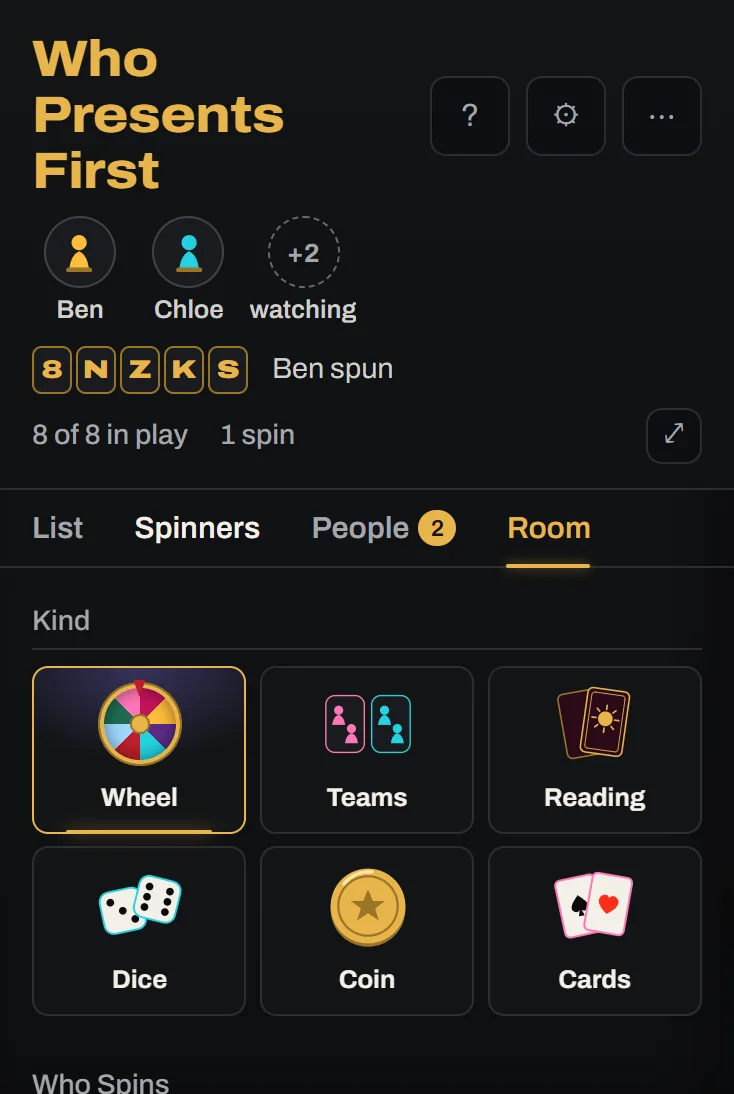
The rail has three tabs. List shows what the room is working from, which depends on the kind: the entries on a wheel, who is dealt in teams, the deck in a reading, the game in the coin, and the game and who plays in dice and cards. People is who's here, and Room holds the settings, which a guest sees but cannot change. The host of a wheel room has a fourth tab, Spinners, and edits the entries on List the way you edit any list. Over the tabs, everybody sitting down stands as a pawn in their own colour, beside the room's code and who presses.
In a wheel room the host also has Open in a Large View, which opens the whole rail over the page, every tab with it, with the list laid out wide. The room's menu holds Share This List, Controller where it is offered, and Close the Room, and on a wheel Change Spinner.
The settings are the host's. Who presses is Only You, which suits a projector, or Anybody, so whoever is in the room can press the button. It is named for the kind: Who Spins, Who Deals, Who Rolls, Who Flips, or Who Draws. Dice games, High Card, and Higher or Lower have no such setting, because the player whose turn it is presses. A change reaches every screen at once, and each kind keeps its own settings while another is up. Changing a game under way or a half-picked reading asks for a second press first.
 Open the picture full size, opens in a new tab
Wheel Rooms
The style, the speed, and the length belong to the room rather than to each screen, so every screen in the room spins the same way and lands on the same entry. A room opens on the style and the pace you spin with, with only you spinning. A spin already turning finishes on the wheel it started on, and two presses at once make one spin. Where anybody may spin, the next spin waits until the last one is done, plus two seconds.
With a seat, the line under the board says who spun as the wheel starts. When it lands on the name you sat down under, the board spells YOU for a moment before the name, and the line says it landed on you.
To put another wheel up, open Spinners, or Change Spinner in the room's menu, and pick one of your spinners or any tool that spins a wheel, or find one by name. Every screen switches with you, under the same code, with everybody still in their seats. A tool brings its own tiles, so a room on Country can pick its regions and a room on a league its divisions. Undo on the strip at the foot of the page puts the last wheel back.
 Open the picture full size, opens in a new tab
Turn on Spin the Seats and the wheel holds everybody sitting down, by the name they sat under, so sitting down puts you on the wheel and leaving takes you off. It replaces every other entry, typed names included, and keeps away seats on. The host's screen builds the list, so leave it open while you play.
Team Rooms
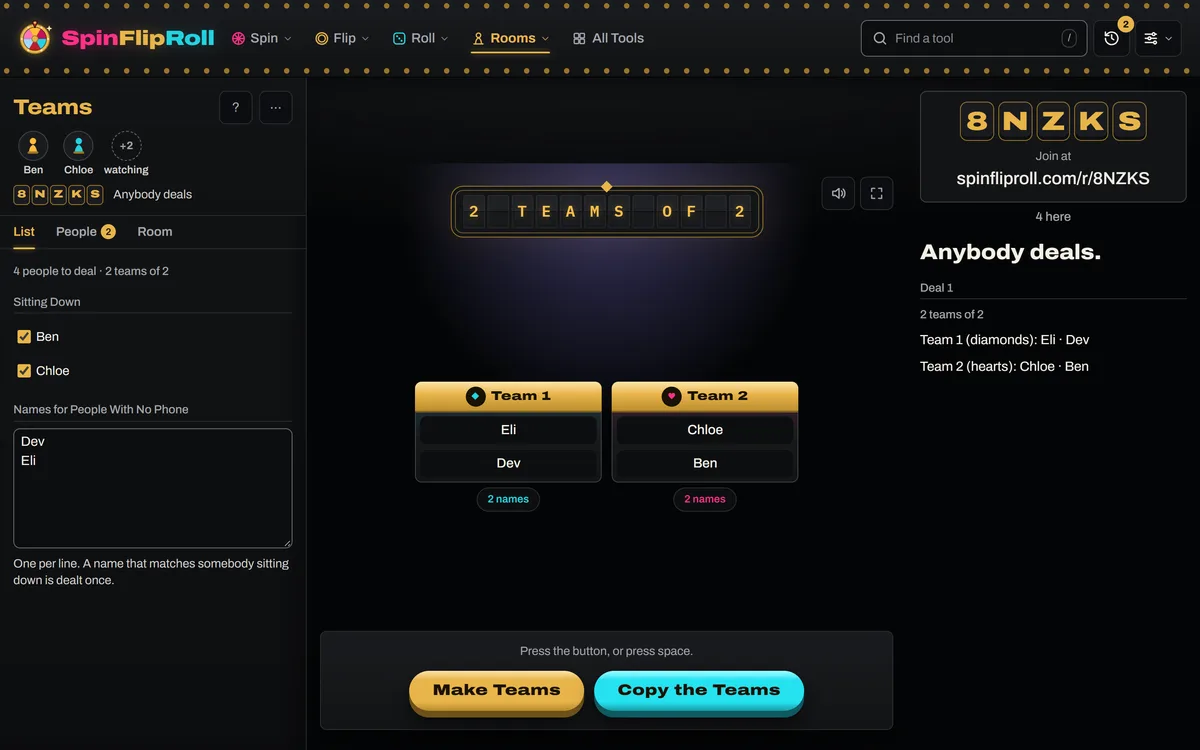
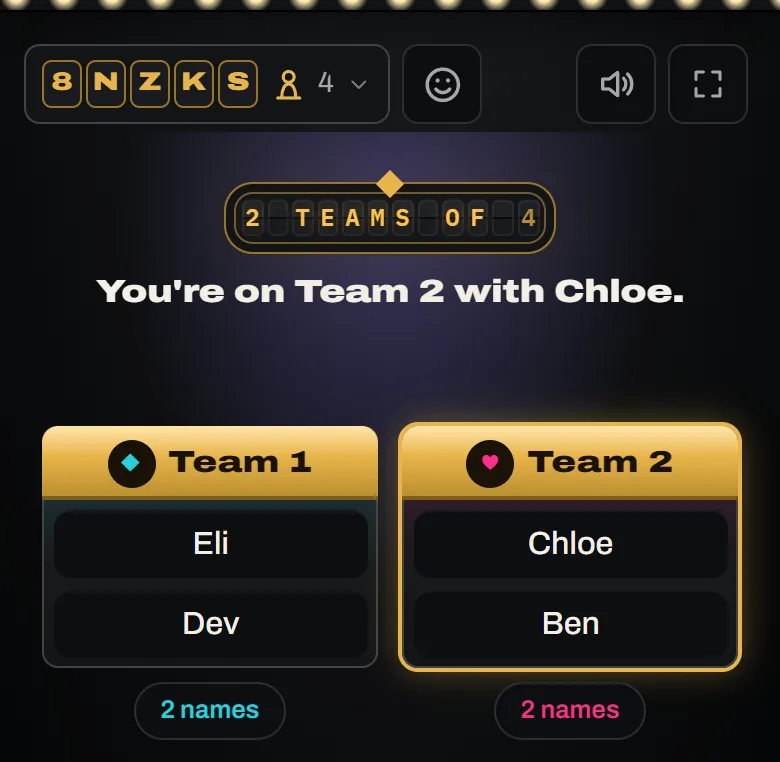
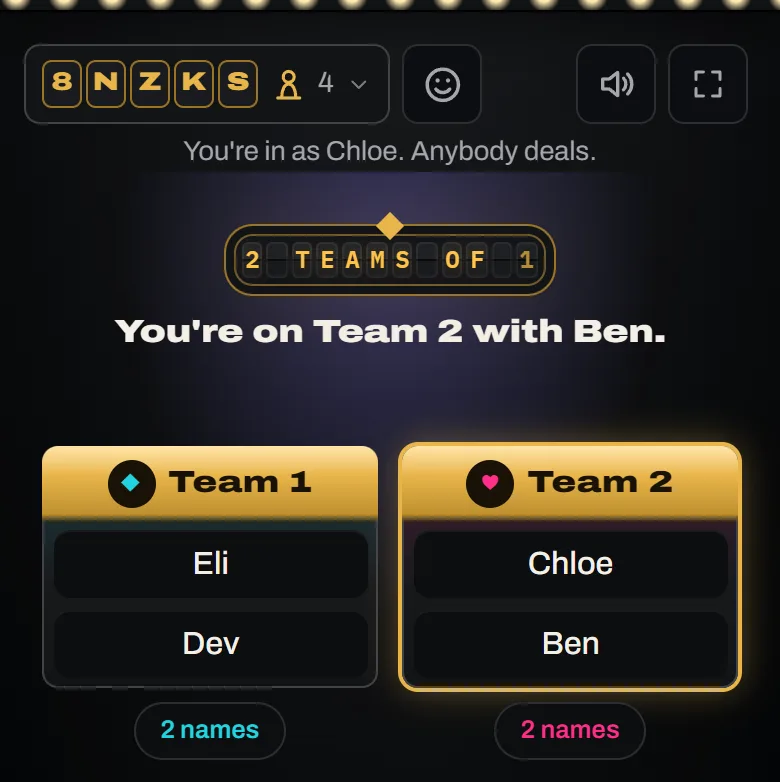
Choose Teams under Kind on the Room tab, or when you open the room, then Split Into a number of teams or a team size, two at the least. Everybody sitting down is dealt, along with any names you type on the List tab for people without a phone, and a typed name that matches somebody sitting down is dealt once. Untick anybody who is only watching. A seat that has been away a minute is left out. Press Make Teams and every screen in the room deals the same teams, and each person's phone lights their team, brings it into view, and says which it is and who else is on it. Copy the Teams takes them with you. Switch back to Wheel whenever you like, and the list is as you left it. While its list of names is empty, the team generator links here with Deal teams in a room.
 Open the picture full size, opens in a new tab
 Open the picture full size, opens in a new tab
 Open the picture full size, opens in a new tab
Reading Rooms
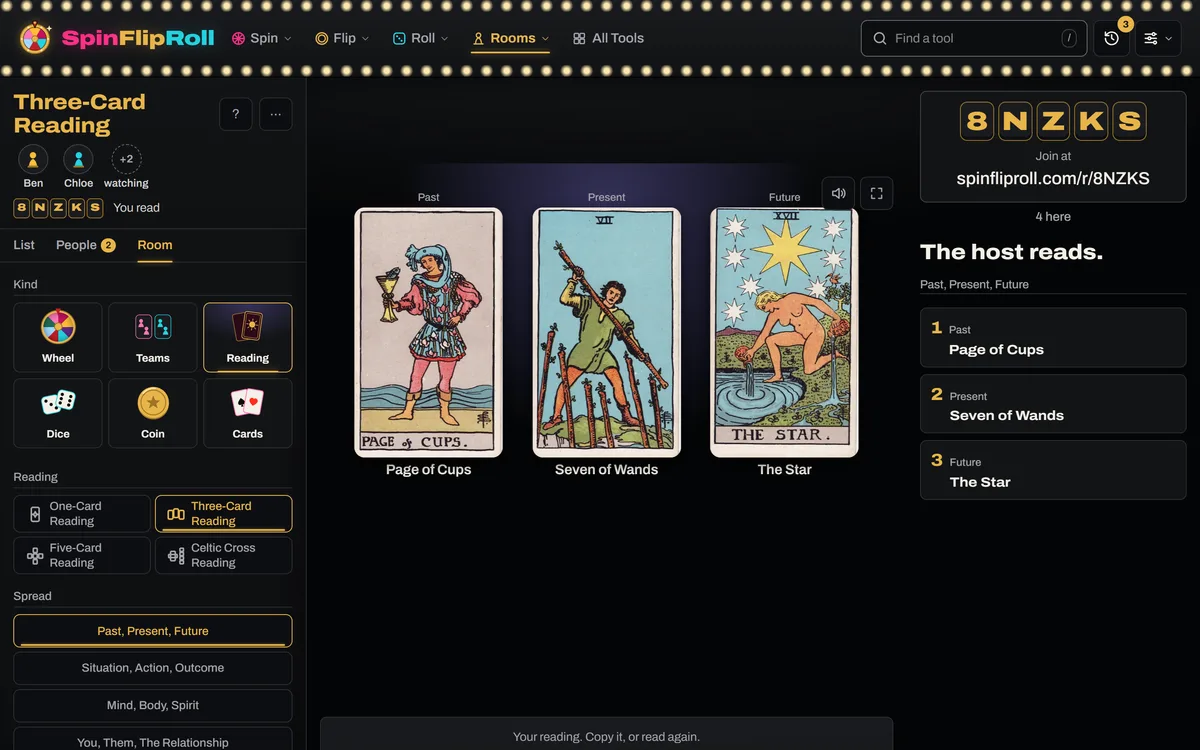
Choose Reading under Kind, then the reading, its spread, and the deck on the Room tab, and the cards in the deck on the List tab. The host reads to begin with, or hands the reading to somebody sitting down under Reads For, so they pick their own cards on their phone. Only the reader shuffles and picks. The reader picks from the fan, pressing Shuffle first if they like, and every screen in the room shuffles the same deck and lays the same cards, in the same places and the same way up. A screen that comes in part way through picks the reading up where it is. Each reading's page links here with Read this in a room.
If the reader is away, the screen says so, and picking You takes the reading back. If the host removes the reader's seat, the reading goes back to the host. Changing the reading, spread, deck, or groups drops the reading on every screen. When it is half picked, the first press says so and the same control pressed again within six seconds starts it over.
On a phone the fan stands at the foot of the screen over Shuffle, and the page moves to each place as a card goes down in it. As the cards turn, every phone follows them, and the line over the buttons gives each one's place and name, such as Place 3, The Tower, reversed. What a card means is yours to say.
 Open the picture full size, opens in a new tab
Dice Rooms
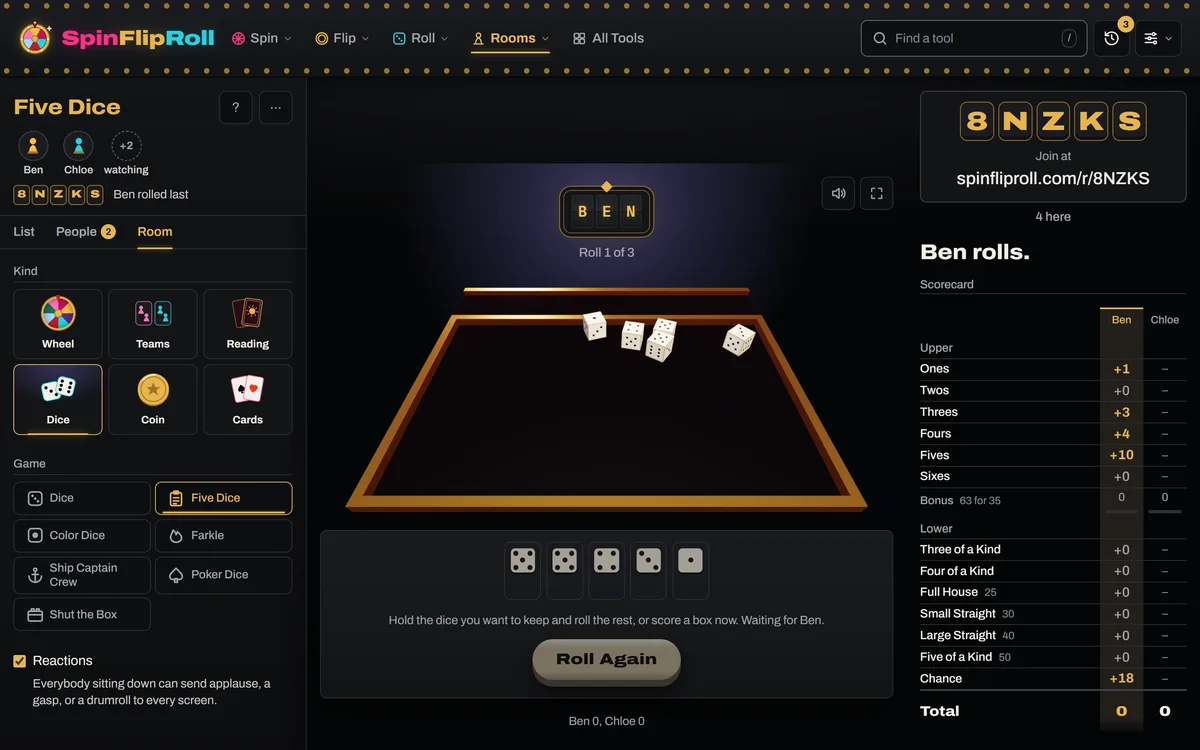
Choose Dice under Kind, then the game on the Room tab: Five Dice, Color Dice, Farkle, Ship Captain Crew, Poker Dice, or Shut the Box, with the house rules for Farkle and Color Dice. Only people with a seat play, each on their own phone, so every player joins with the room's code and a name. They play in the order they sat down, up to what the game seats: four for Five Dice, Color Dice, and Shut the Box, and six for Farkle, Ship Captain Crew, and Poker Dice. Ship Captain Crew and Poker Dice need two. The List tab counts who is playing and has a tick box for each seat, so untick anybody who is only watching. Somebody who sits down after a game starts joins the next one.
Press Roll to start the game. The player whose turn it is rolls, holds, and scores from their phone, from the boxes under the dice, and every screen in the room sees the same dice land and the same scores. Your button steps back while a player's turn is up, the same as everybody else's, so your screen shows whose turn it is. If that player's phone has been gone for a few seconds, or you took their seat away, your button lights for them, reading Roll for their name. Pressed twice, it plays their turn from your screen, so a stray press takes nobody's turn. Before anybody sits down it reads Waiting for People. New Game on the List tab starts over, and changing the game while one is under way asks for a second press within six seconds. Each dice game's page links here with Play this in a room.
 Open the picture full size, opens in a new tab
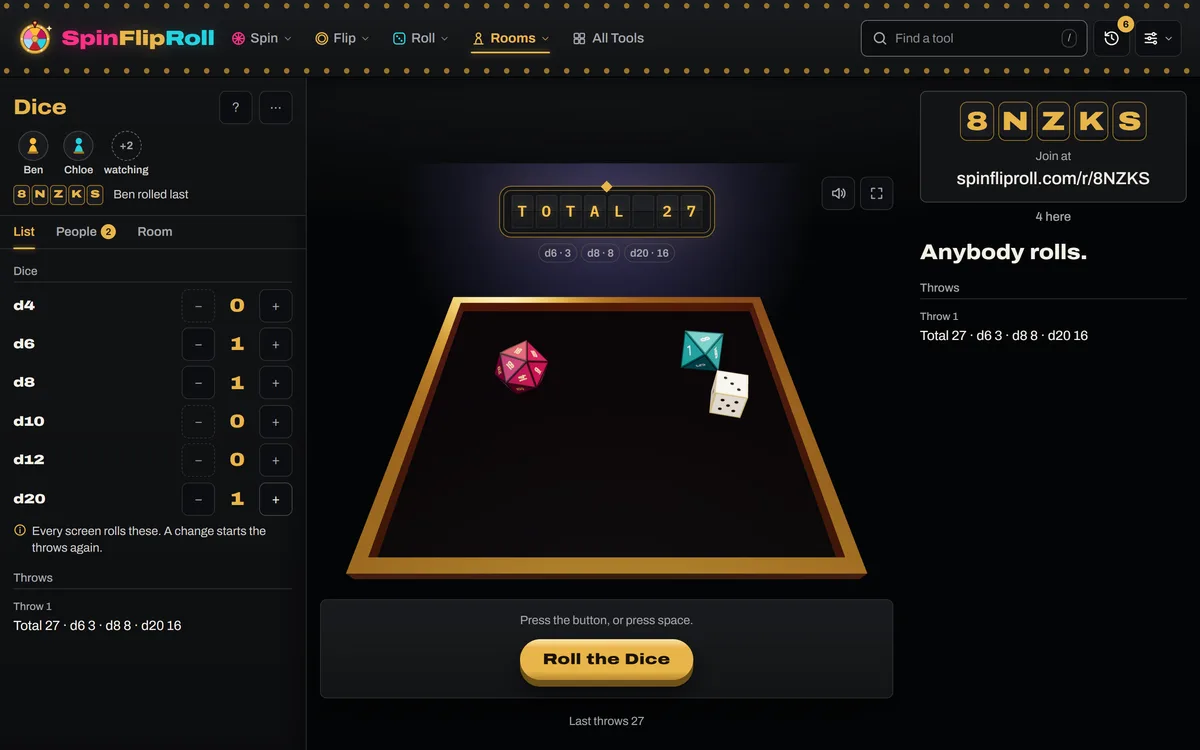
The plain dice work in a room too. Choose Dice first among the games, and set the dice on the List tab, up to seven from a d4 to a d20. Every screen in the room sees the same dice land the same way. Who rolls is the host's to choose, as on a wheel, and nobody needs a seat. A change of the dice starts the list of throws again. The dice page links here with Roll this in a room.
 Open the picture full size, opens in a new tab
Coin Rooms
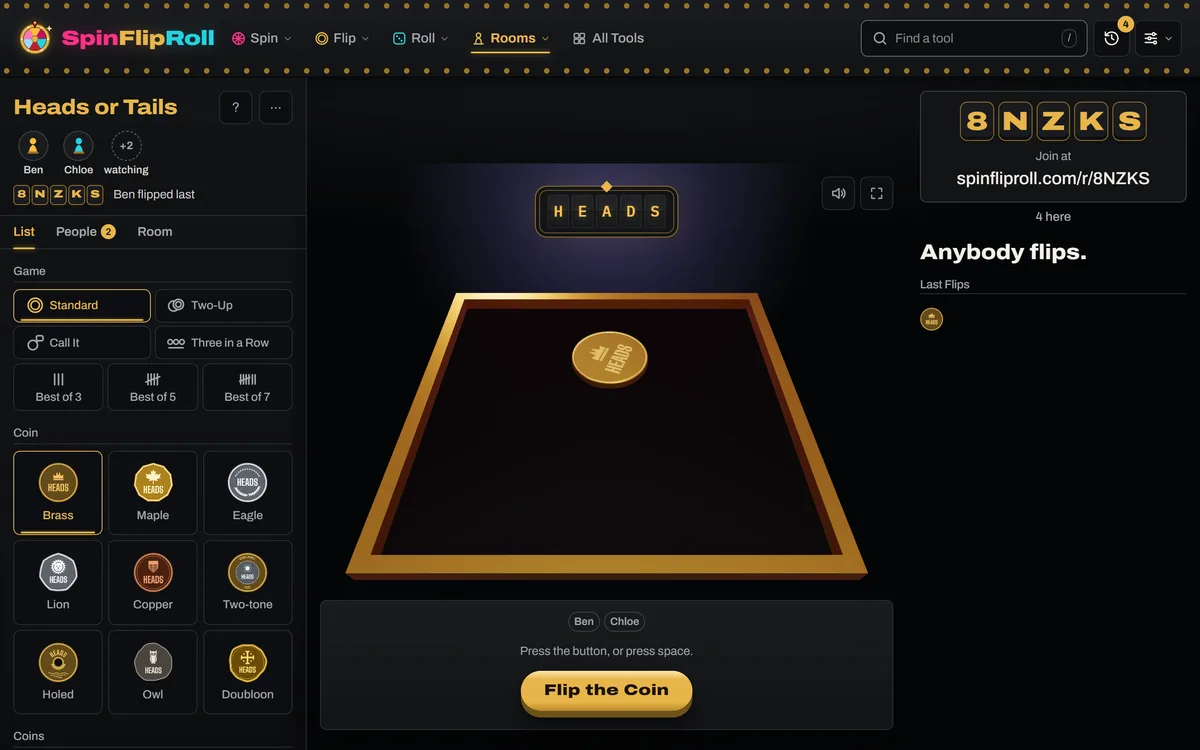
Choose Coin under Kind, then on the List tab the game, the coin, how many, and what the sides are called. The games are Standard, Two-Up, Call It, Three in a Row, and Best of 3, 5, or 7. Every screen in the room sees the same coin land the same way, and keeps the same score. Who flips is the host's to choose, as on a wheel, and in Call It whoever flips calls it. A coin never lands on its edge in a room. Changing any of these starts the score again. The coin's page links here with Flip this in a room.
Everybody with a seat can call the next flip with Heads or Tails under the table, the first flip too, whoever flips, when one coin is in play. Two-Up and several coins take no calls. Press the other side to change your mind before the flip, twice at most, and then your call stands until the coin lands. The row of callers ticks Called as each person calls, but nobody sees which side until the coin lands, and then every call shows, the right ones in brass. Under the board you see your own call and how many you have right, and the line at the foot of the stage keeps the count for everybody, after the coin's own score. Watching with no seat, you see the callers but have nothing to press.
 Open the picture full size, opens in a new tab
Card Rooms
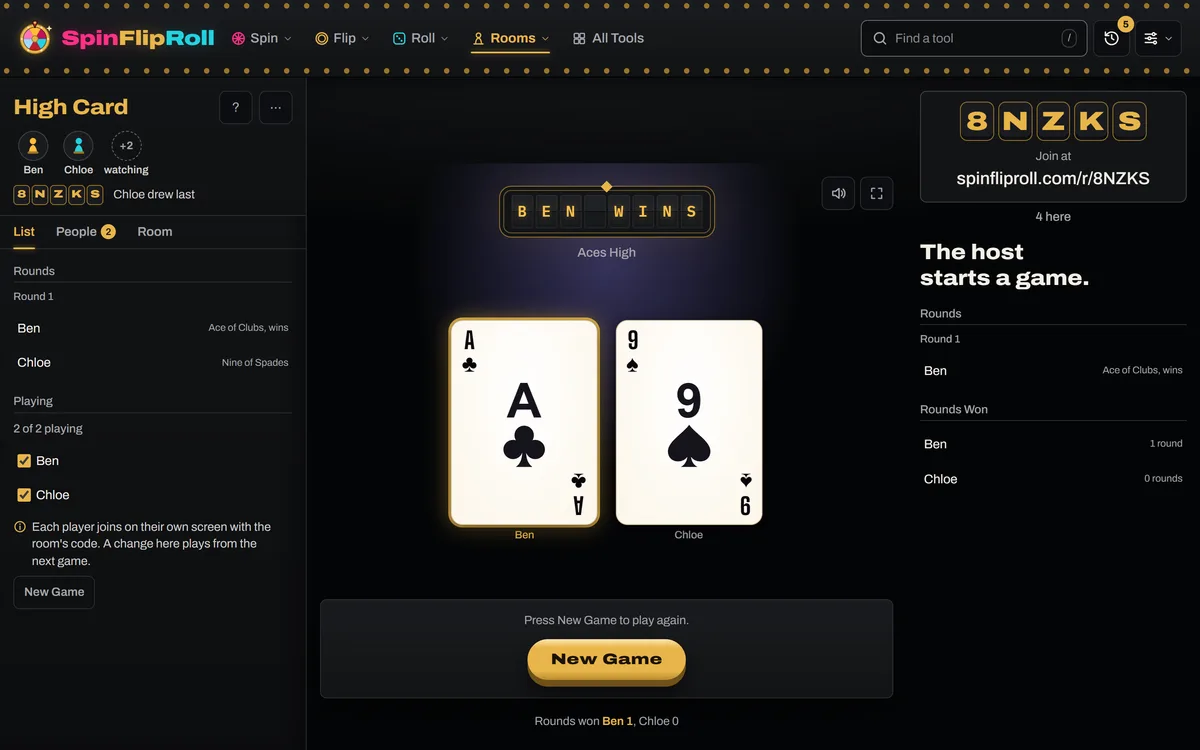
Choose Cards under Kind, then the game on the Room tab: Draw Cards, High Card, or Higher or Lower, with the same choices as each one's own page. Every screen in the room shuffles the same deck and turns the same cards. In Draw Cards, who draws is the host's to choose, as on a wheel, and each draw takes one to ten cards, kept out of the deck or put back. High Card and Higher or Lower are played from seats, so every player joins with the room's code and a name, and you press Start the Game. High Card takes two to six players, and each draws their own card. Higher or Lower takes one to six, who take turns. A miss passes the turn, and after three turns each the longest run wins. Under the board you see your own card and the highest to beat in High Card, and your run beside the best run in Higher or Lower. New Game plays again. Each card page links here with Play this in a room.
 Open the picture full size, opens in a new tab
Reactions
Once you have a seat, React, beside the room's code, sends applause, a cheer, a gasp, a drumroll, a groan, or crossed fingers. On a narrow screen it is a face button. The reaction floats up over the stage on every screen in the room. You can send three in a row, then one every two seconds, and any more are dropped. The room keeps none of them. The host can switch Reactions off for the whole room on the Room tab, and Show Reactions in your own Settings hides them on your screen alone. A screen reader hears the reactions that arrive together as one line.
When a Room Ends
Close the Room, in the room's menu and pressed twice, ends the room for everybody. A room closes by itself too, after half an hour with nobody in it, or after two minutes if nobody ever joined. A closed room does not come back. It shows the last result your screen saw in it, then the same tool to play on your own screen, such as Farkle or the reading. Every win you see in a room goes in your History.
If the host closes the tab, the room carries on. The Rooms menu keeps your last five rooms for twelve hours under Back to a Room, and marks the ones you host as yours. Go back to one in the same browser and you are still its host, though a seat you took is gone with the tab.
A host who sat down with a name and stays away for two minutes passes the room on. It goes to whoever sat down first among the people here who were already in the room when the host went, and every screen counts down who takes it and when. A host with no name, such as a projector, keeps the room however long it is away. A host who comes back after the room has passed on watches, and can sit down like anybody.
When the site restarts, the host's browser opens the room again under the same code for the next ten minutes. Everybody else goes back in on their own, and seated tabs sit down under their old names. Tips on running a room for a class, a party, or a call are in the guide to running a room.
Back to contentsHistory
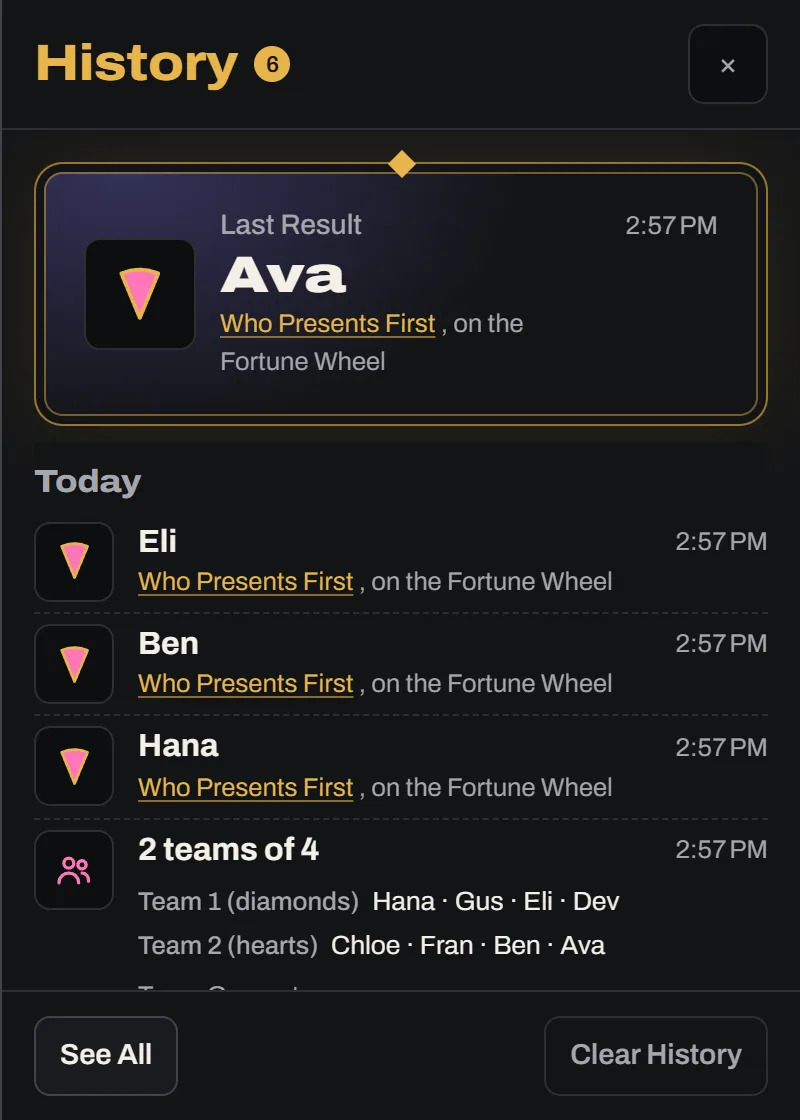
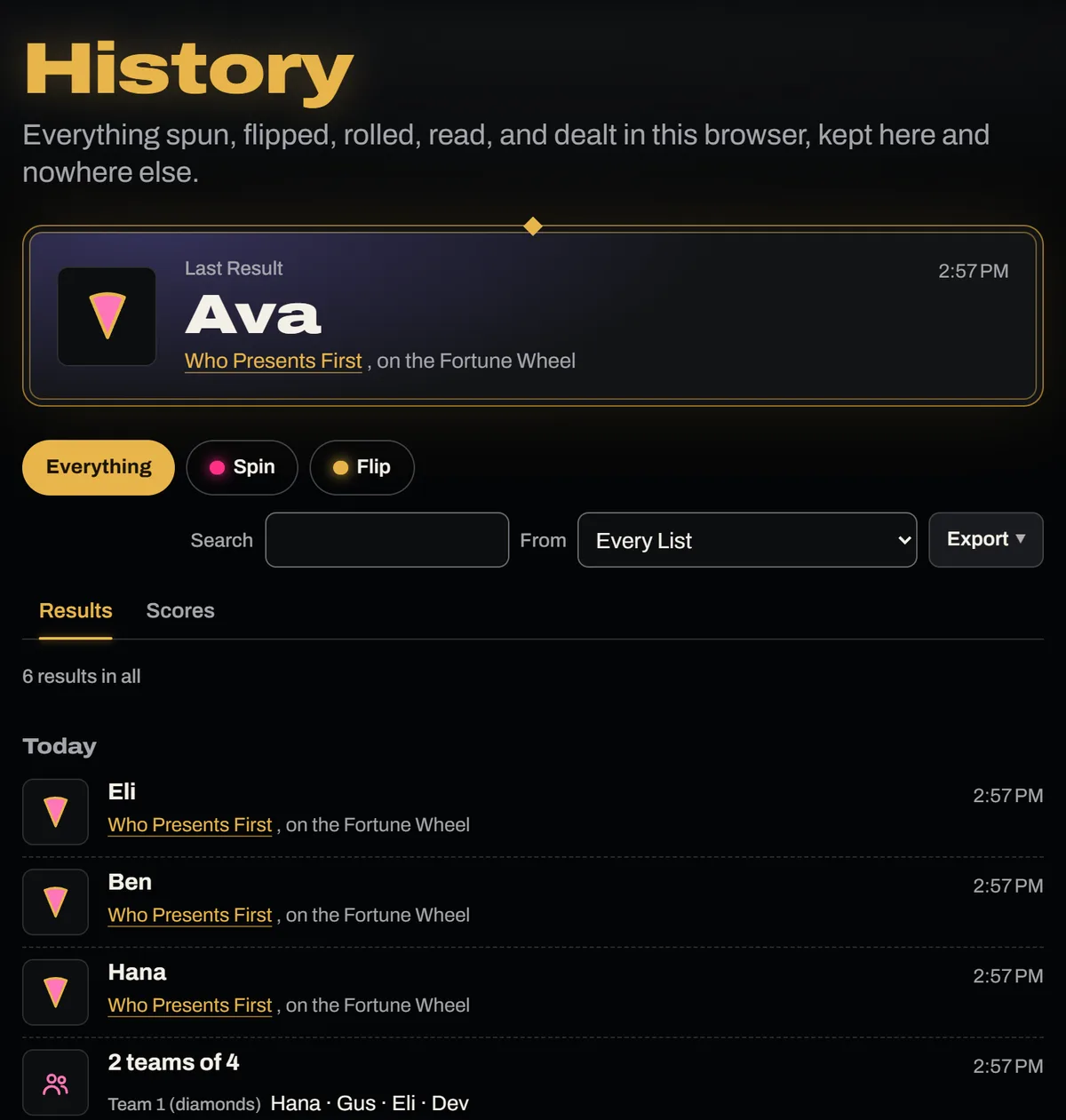
History, the clock at the top right, lists the latest results from every list, the coin, and the dice, along with every tarot reading you finish and every split the Team Generator deals. The newest stands at the top in a brass frame, and every result sits beside what gave it: the wedge it landed on, its logo, or the coin, the dice, or the cards. A reading shows each place with its card, and a split each team with its names. A result from a room ends with the room's code, which takes you back in while the room is in your recent rooms, and says in a room after that.
 Open the picture full size, opens in a new tab
See All opens the whole history. Pick Spin, Flip, or Roll to see only what came from there, or In Rooms for everything from rooms, then From for one list, one reading, or the Team Generator. Read it as a list of results a page at a time or as a count of who won how often. A reading counts each of its cards, and a split counts nobody, since nobody won it. Export takes the page you are reading or the whole lot, as a CSV or as text. In a CSV a reading is a line for each card and a split a line for each person, with the place or the team beside it.
 Open the picture full size, opens in a new tab
Coin Flip
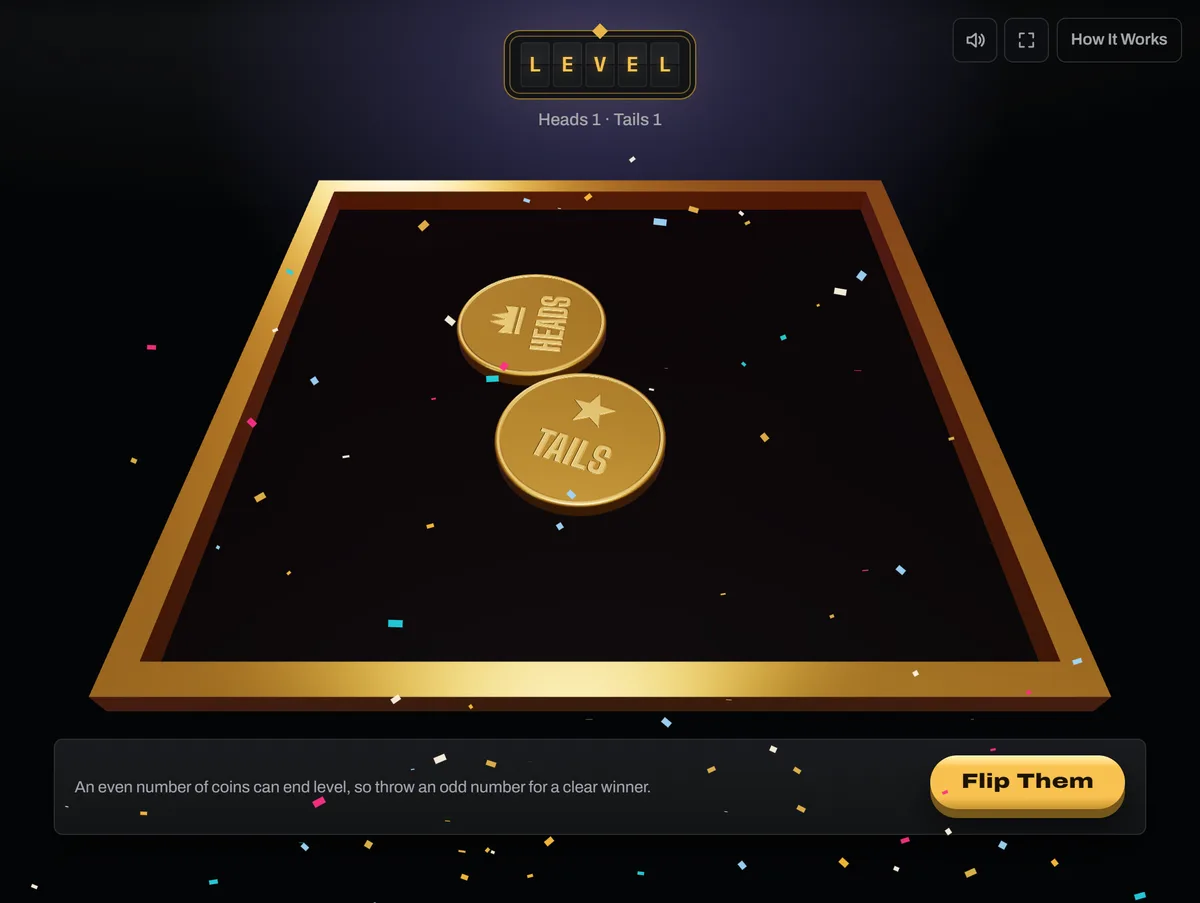
The coin is a real coin thrown onto a table, and the answer is read off whichever face lands up. Throw up to three at once, and every so often one lands on its edge, which counts as neither.
 Open the picture full size, opens in a new tab
Name the Sides to settle something specific, so the result says the name rather than heads or tails.
 Open the picture full size, opens in a new tab
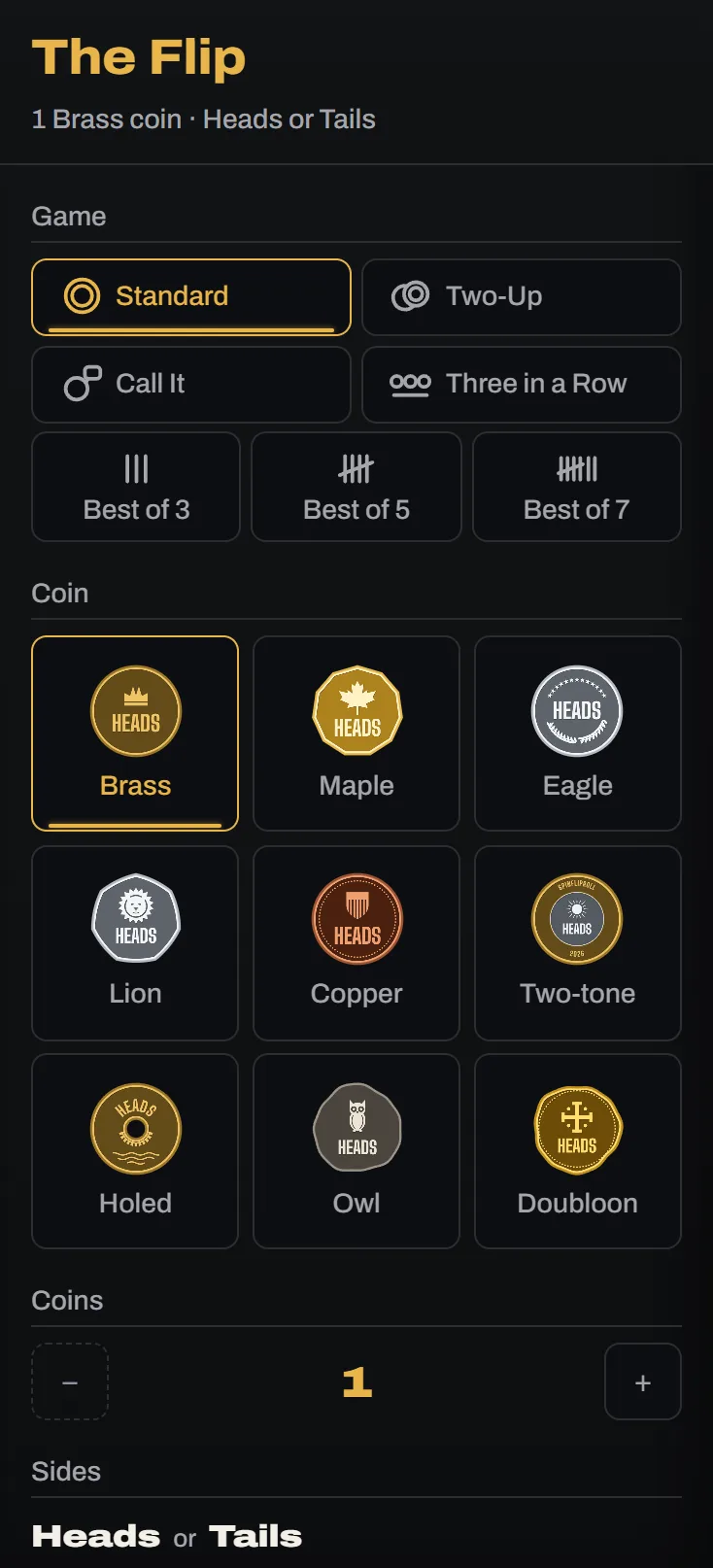
Game turns the flips into a game. Two-Up throws two coins, where two alike decides it and one of each is odds, thrown again. Call It swaps the button for Call Heads and Call Tails, and counts how many calls you get right. Three in a Row flips one coin until a side comes up three times running. Best of 3, 5, or 7 flips one coin until a side has taken most of the flips, and keeps the score. In every game a coin on its edge does not count.
To flip with everybody watching on their own screen, press Flip this in a room under the coin's panel. It opens a room on this coin, its game, and its sides, as the rooms part of this page says.
Back to contentsTarot Readings
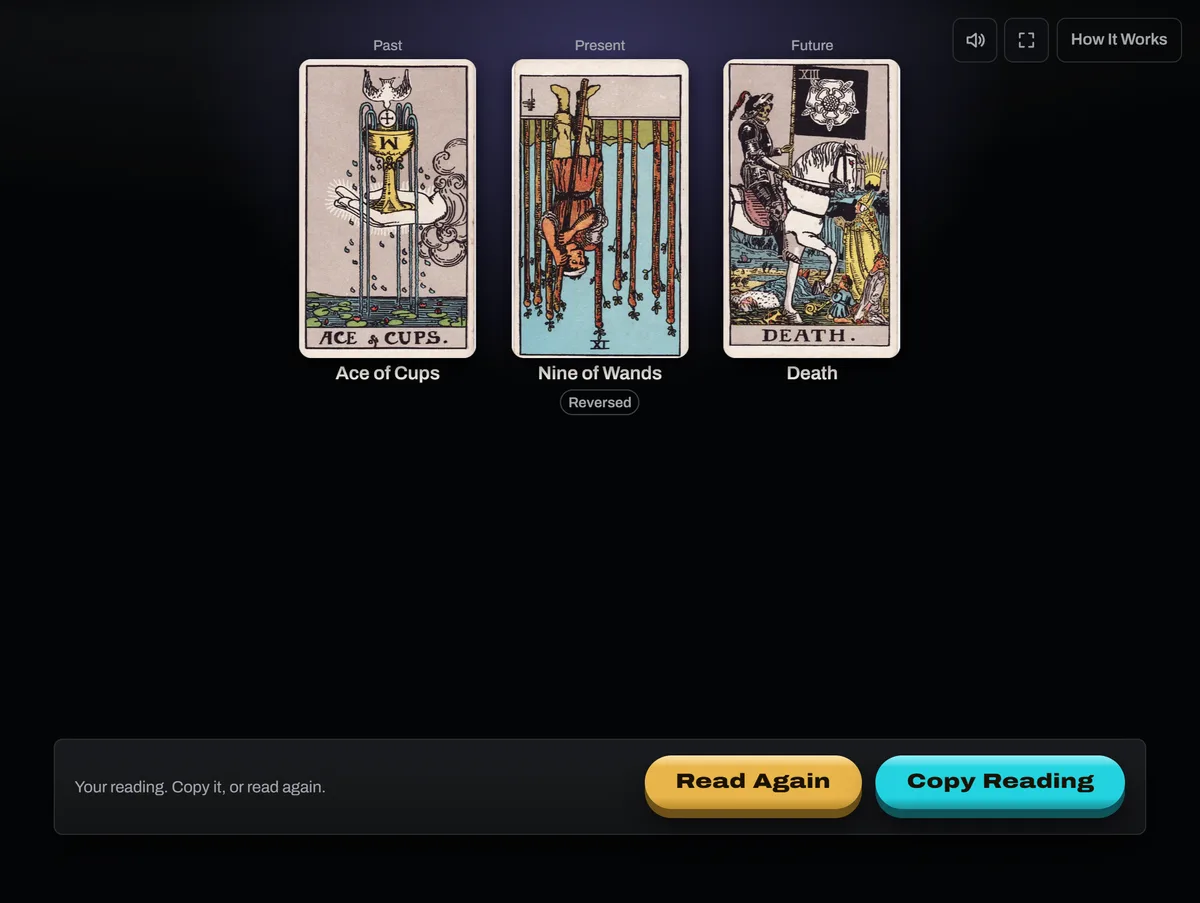
Flip in the bar opens the coin, three tools with a deck of playing cards, and four tarot readings: one card, three cards, five cards, and the Celtic Cross. Each lays the deck out face down. Pick a card for each place, and once every place has one, the cards turn over to show their names, upside down where one came up reversed.
 Open the picture full size, opens in a new tab
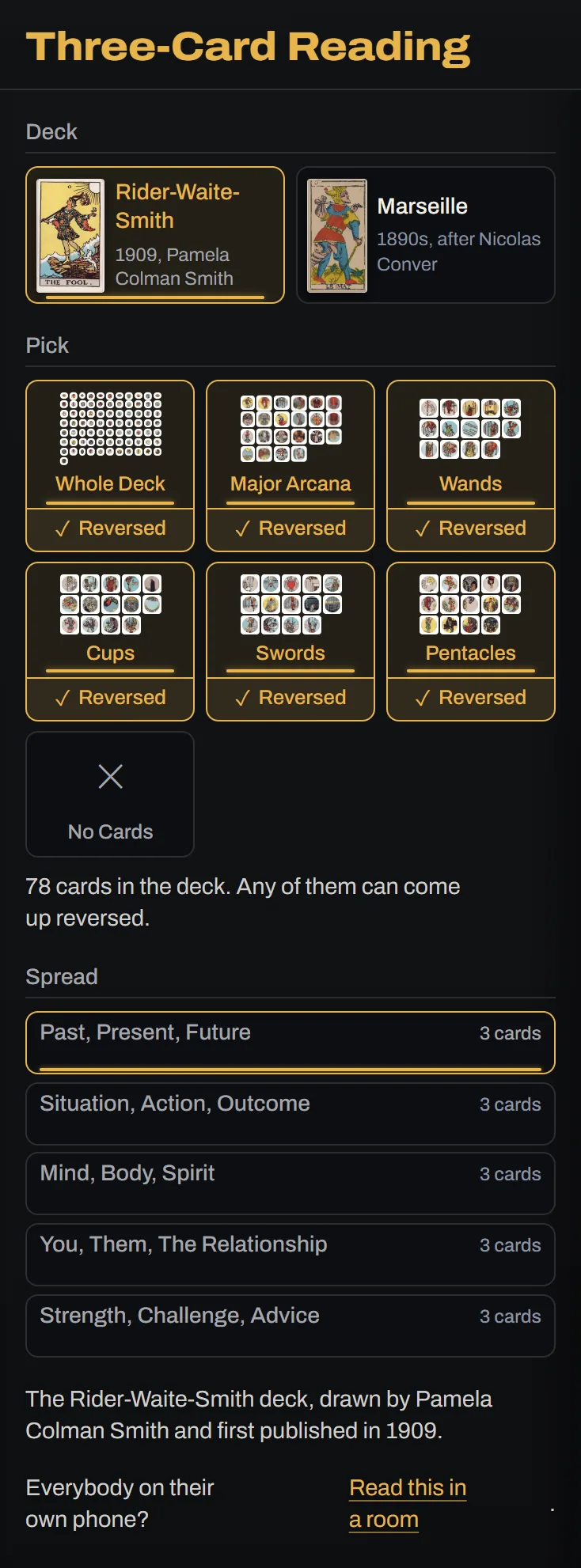
The panel beside it picks the deck, the Rider-Waite-Smith or the Tarot de Marseille, and which of its cards are in play. Each tile puts its group in the deck, and the Reversed tab under it lets those cards come up upside down. The three-card and five-card readings offer more than one spread, each with its own names for the places.
 Open the picture full size, opens in a new tab
Copy Reading under the button puts every place and its card on your clipboard. Every finished reading also goes in your History, in this browser and nowhere else. The tarot card wheel has the same deck tiles and Reversed tabs, for drawing one card at a time.
Back to contentsPlaying Cards
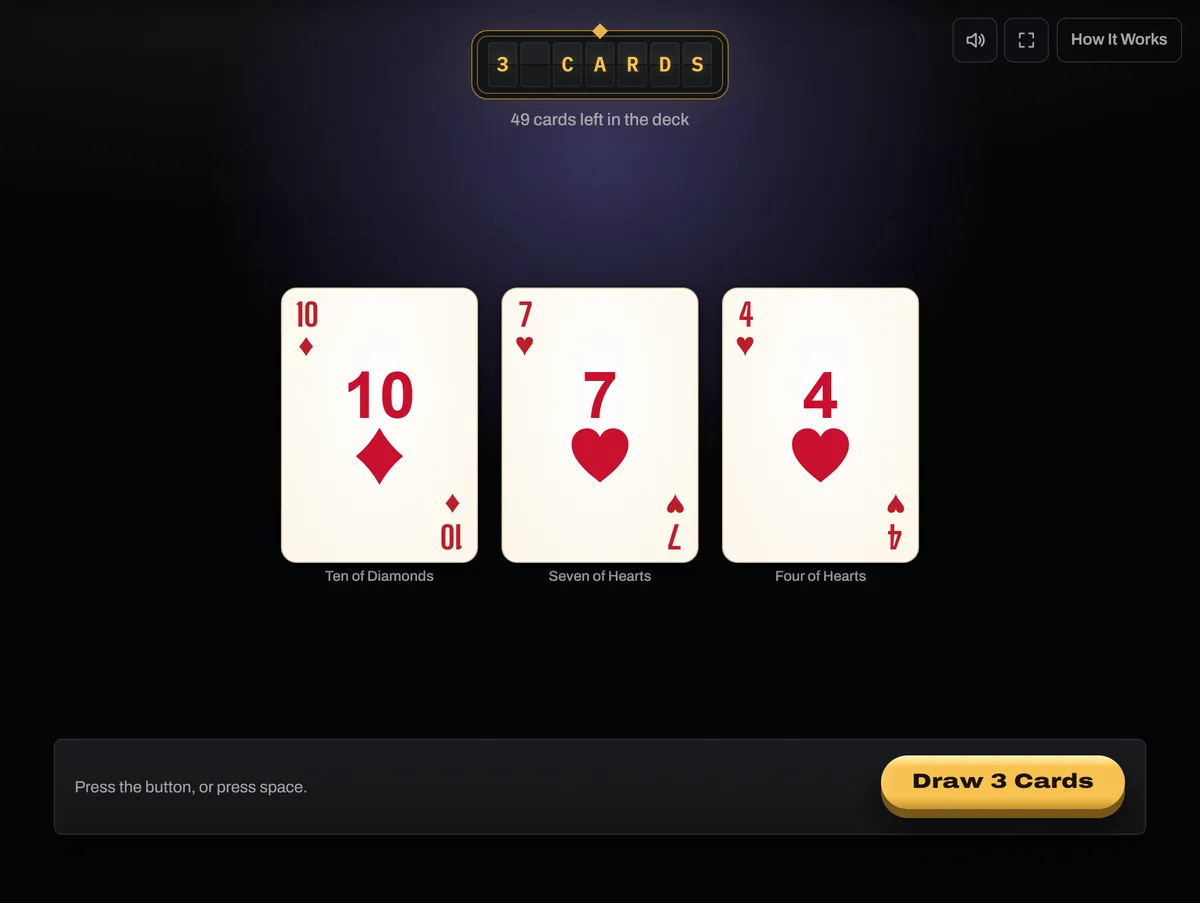
Flip in the bar also holds a deck of 52 playing cards, with no jokers. Each tool shuffles it, lays the cards down face down, and turns them over one at a time.
Draw Cards turns over one card or up to ten.
 Open the picture full size, opens in a new tab
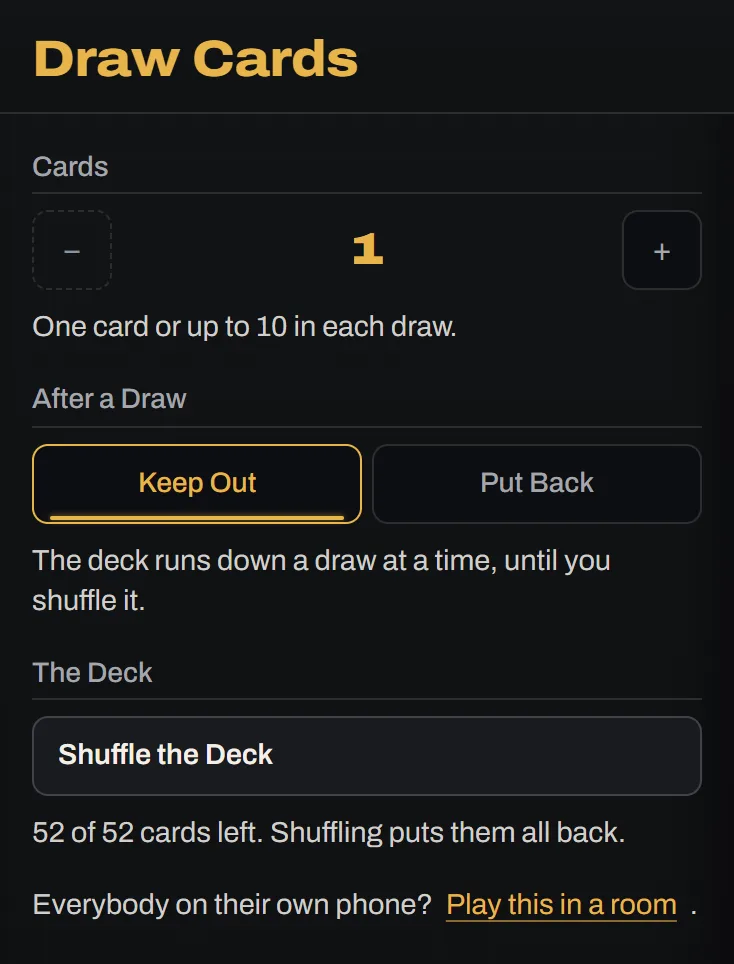
Under After a Draw, Keep Out leaves the cards out so the deck runs down until you press Shuffle the Deck, and Put Back draws from a whole deck every time.
 Open the picture full size, opens in a new tab
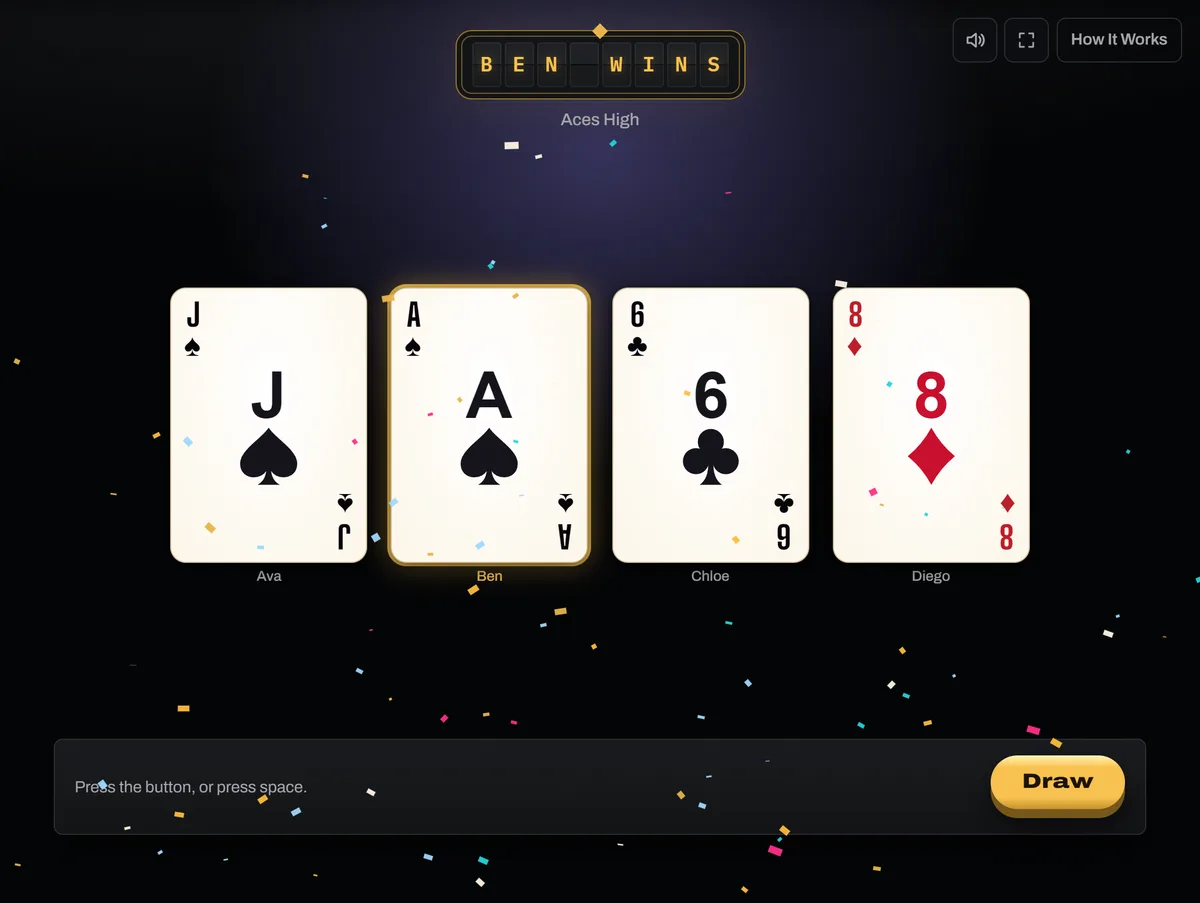
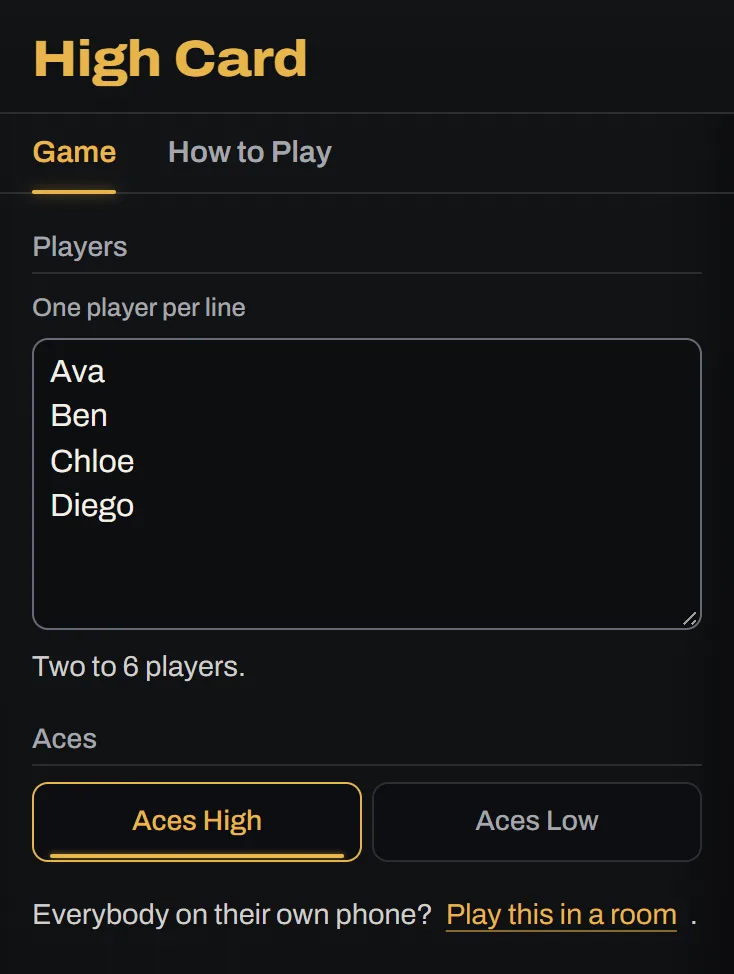
High Card gives each player one card, and the highest wins. Suits do not count, so players who tie draw again, and only they do.
 Open the picture full size, opens in a new tab
Type the players one to a line, two to six of them, and pick Aces High or Aces Low.
 Open the picture full size, opens in a new tab
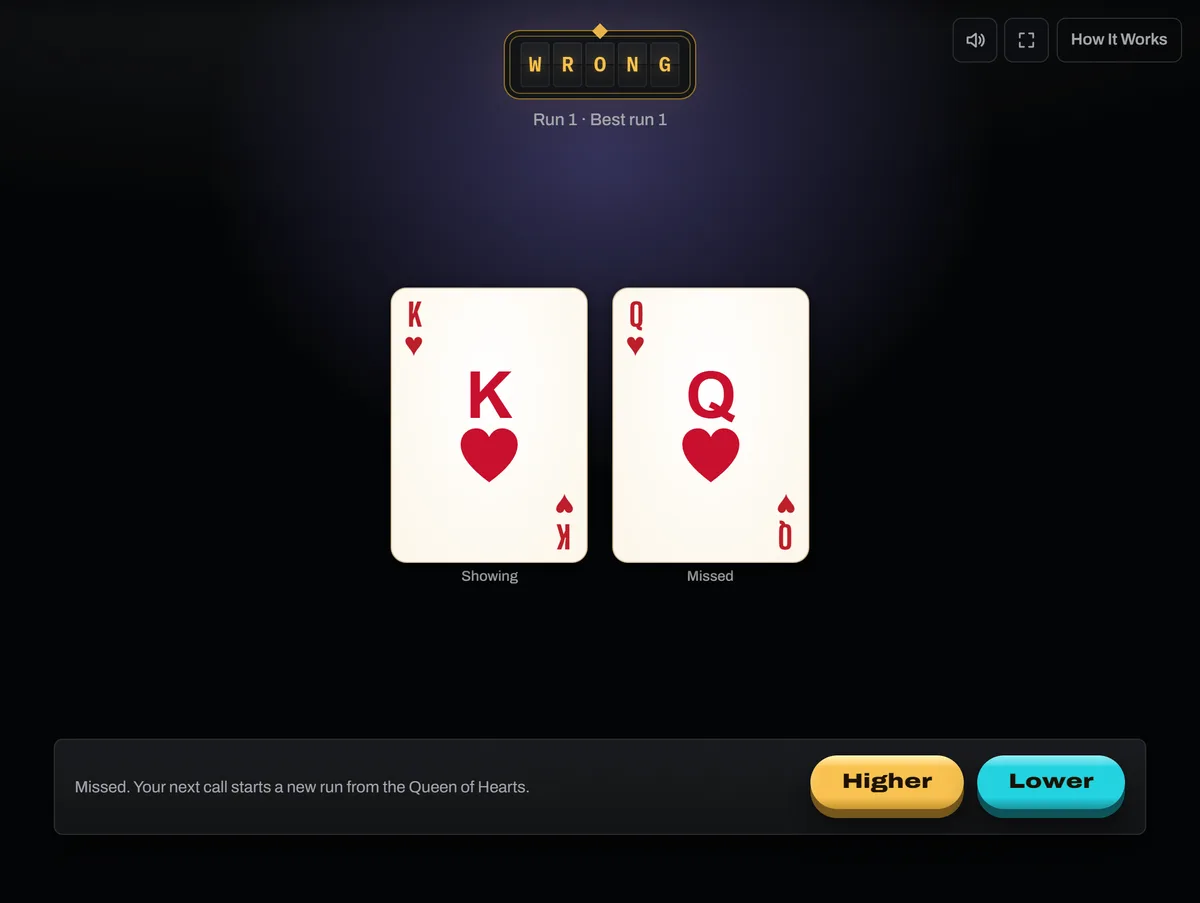
Higher or Lower lays one card face up. Press Higher or Lower to call the next card, and each right call adds to your run. Aces are high, and a card of the same rank counts as a miss.
 Open the picture full size, opens in a new tab
Every draw, game, and run goes in your History.
To play with everybody on their own screen, press Play this in a room in the tool's panel. It opens a room on that tool, as the rooms part of this page says.
Back to contentsDice Roll
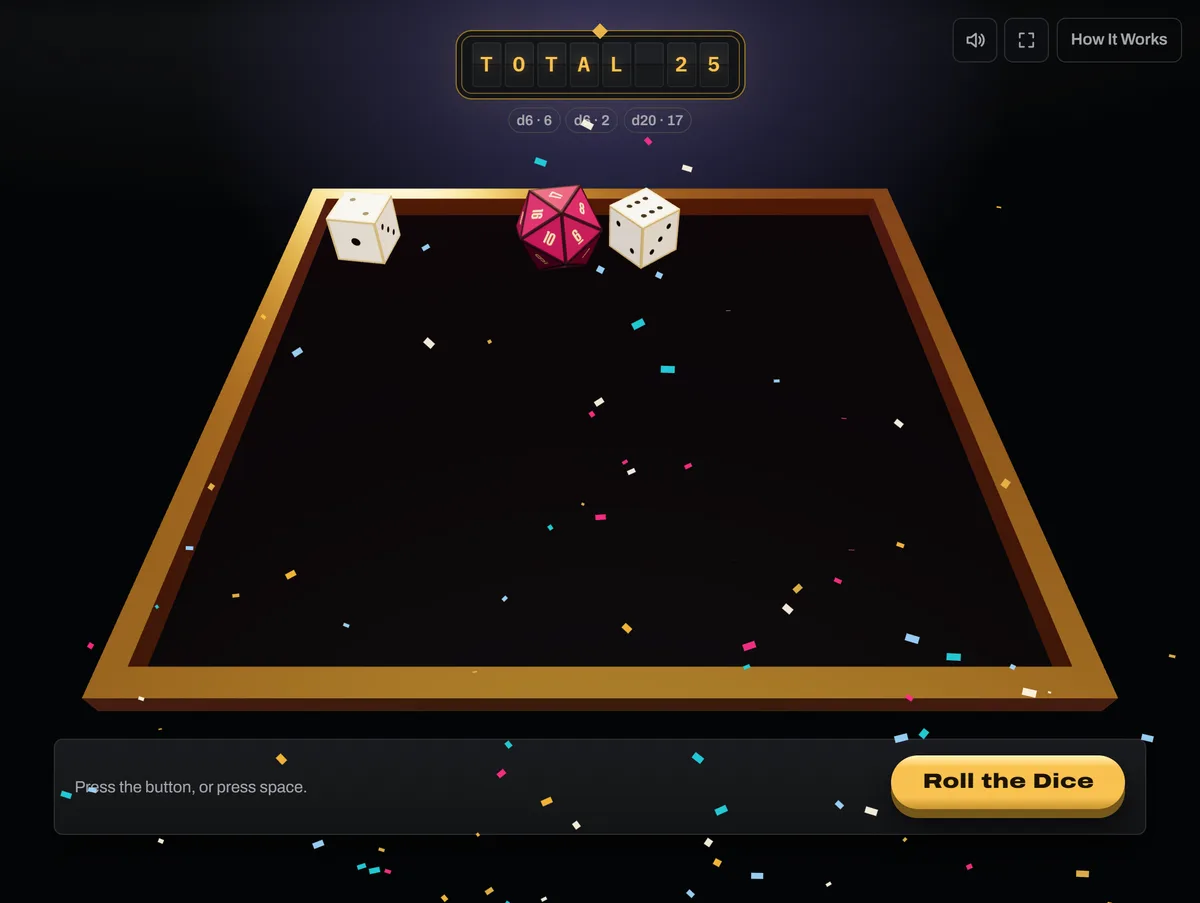
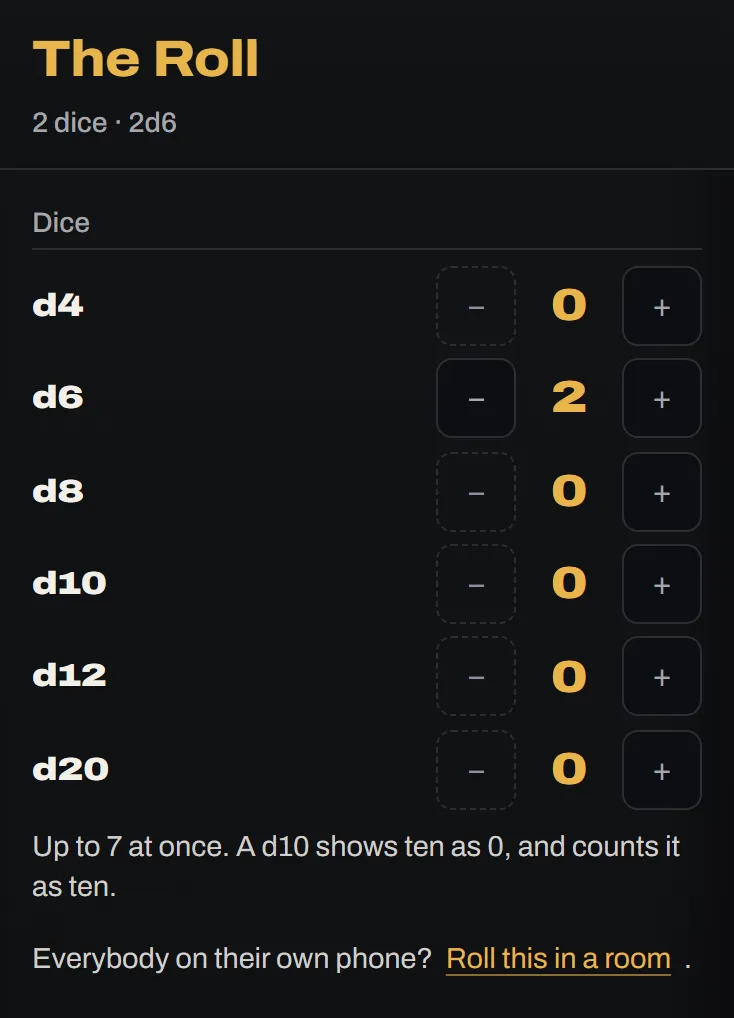
The dice tumble across the same table. Mix up to seven, from a d4 to a d20. The board gives the total, and each die's own number sits under it. To roll with everybody on their own screen, press Roll this in a room under the dice, as the rooms part of this page says.
 Open the picture full size, opens in a new tab
 Open the picture full size, opens in a new tab
Dice Games
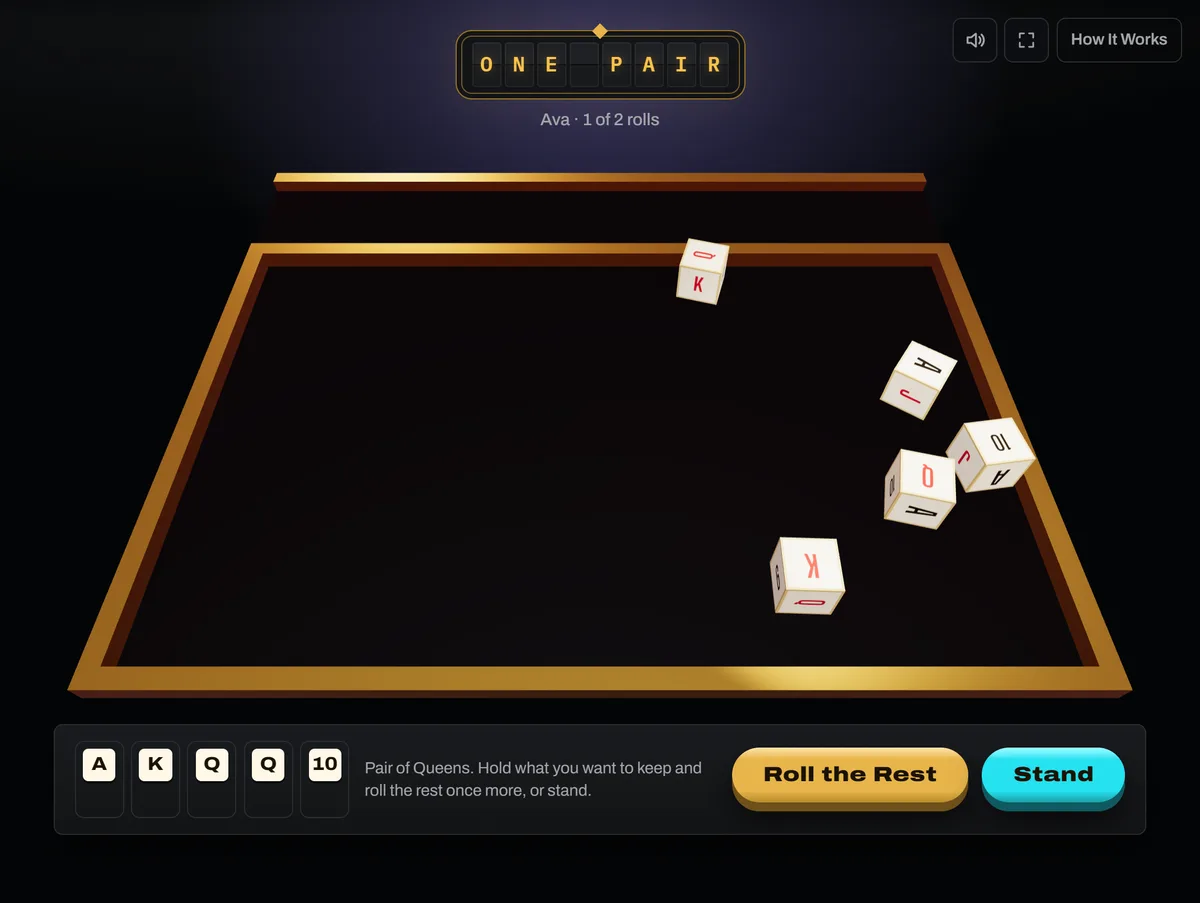
Roll in the bar also holds six dice games, played on the same table: Five Dice, Color Dice, Farkle, Ship Captain Crew, Poker Dice, and Shut the Box. Type the players one to a line and the dice pass round them. Until you do, a table opens on names picked at random. The names you type seat every dice game and High Card until you close the tab.
 Open the picture full size, opens in a new tab
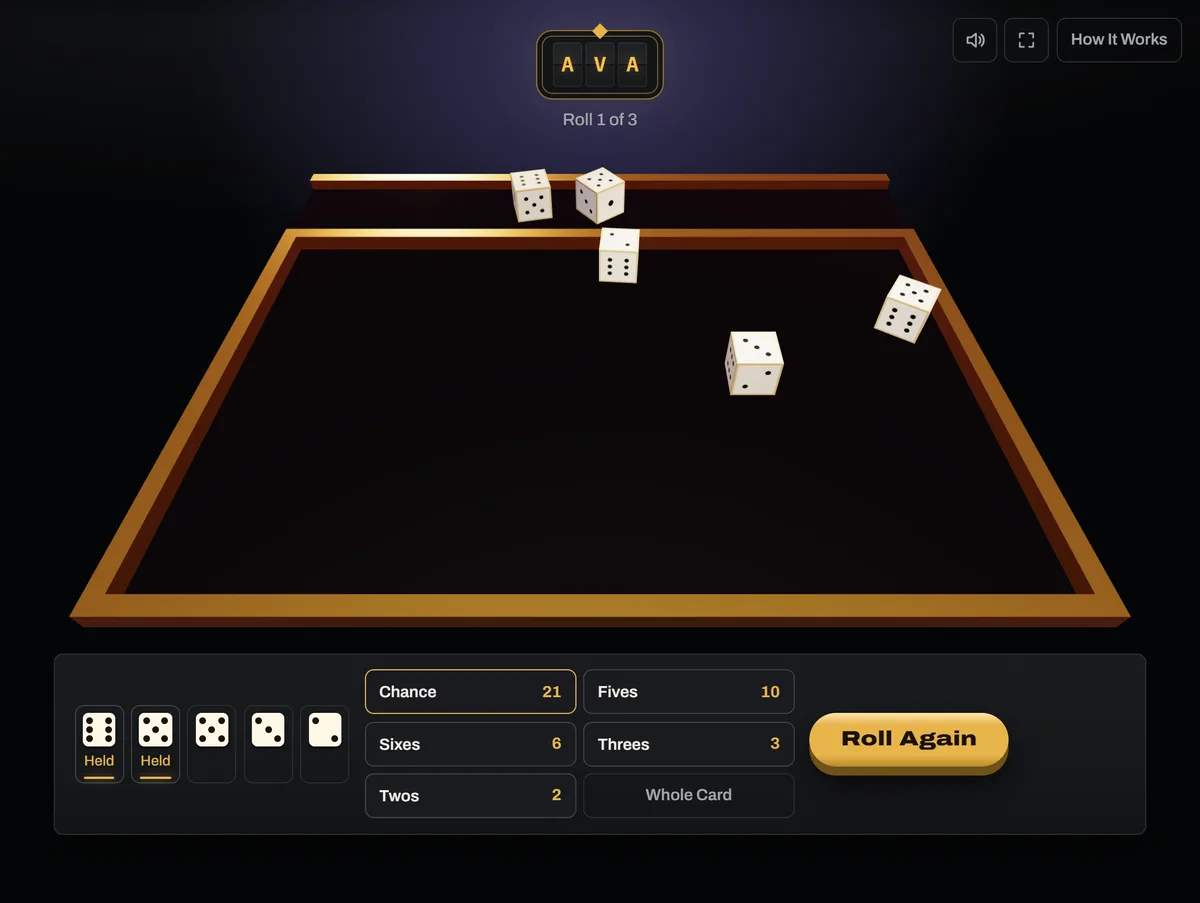
Press a die on the table, or its button under the table, to hold it. A held die lifts onto the ledge behind the table and stays there while the rest are thrown. Press it again to put it back. With a keyboard, the number keys hold a die by its place, and Space rolls. A die the game holds by its rules, such as the ship in Ship Captain Crew, moves to the ledge by itself. In Ship Captain Crew only the cargo can be held, once the crew is aboard.
 Open the picture full size, opens in a new tab
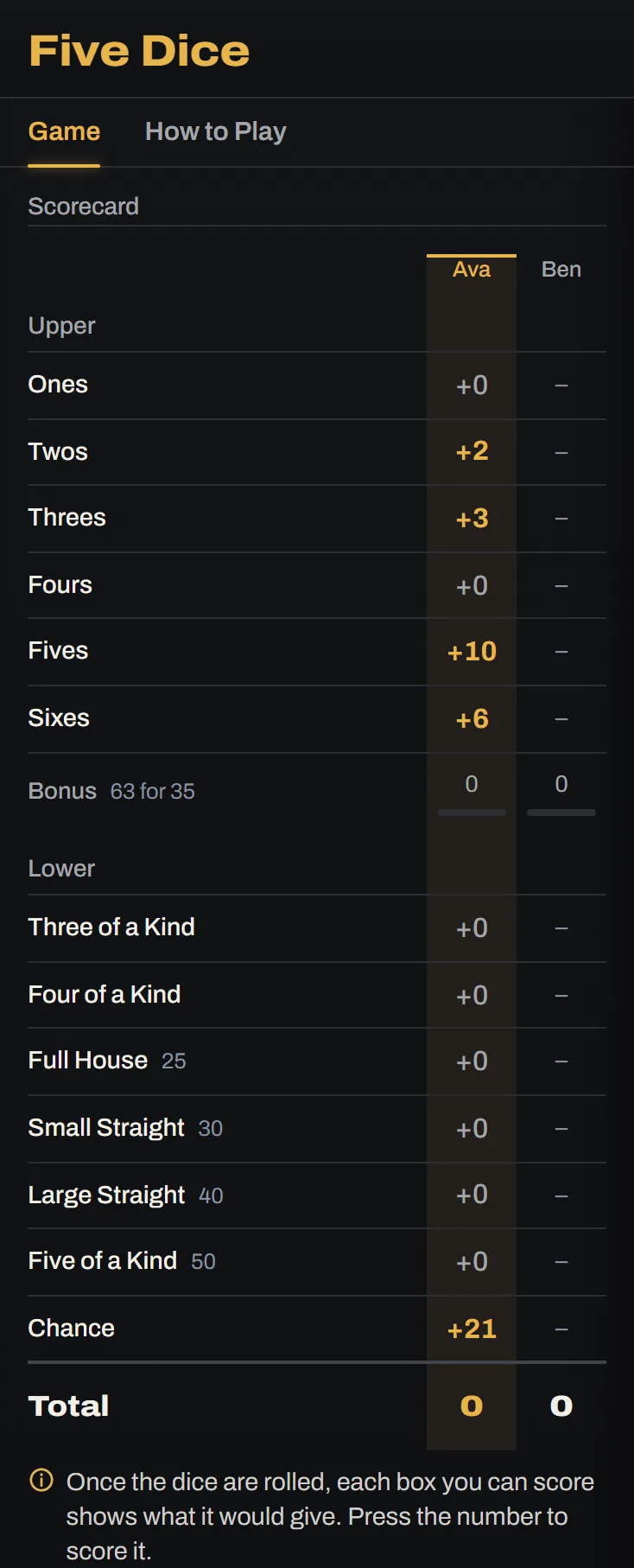
In Five Dice and Color Dice, score each turn once the dice are rolled. The boxes you can fill show under the dice with what they pay, the best first, and a press on one scores it. A box that pays nothing asks for a second press. Whole Card opens the scorecard large, and on the scorecard in the rail each box you can use shows what it would give too, with a press anywhere on its row scoring it. Color Dice's pips come in three colors, and the boxes that ask for one color are marked with them. Farkle, Ship Captain Crew, and Poker Dice keep their scores on the panel instead, and the button beside Roll banks, keeps, or stands. Farkle and Color Dice also have a House Rules tab for the common variants, such as a score to reach before your first bank in Farkle.
 Open the picture full size, opens in a new tab
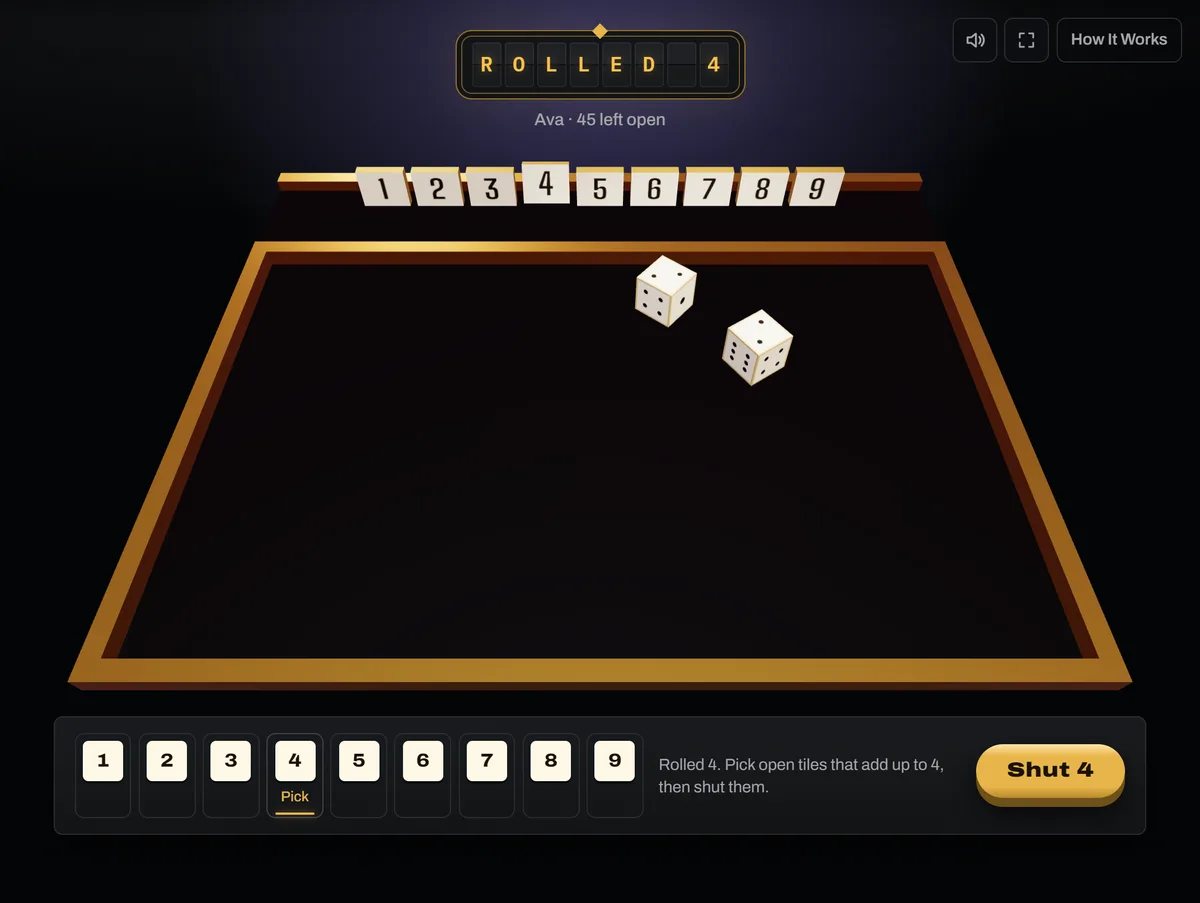
In Shut the Box, tiles 1 to 9 stand on the ledge. After a roll, press the buttons of open tiles that add up to it, or press their numbers, then press Shut. Space rolls, or shuts the tiles picked. Once the open tiles add up to 6 or less, Roll One Die throws one die instead of two.
 Open the picture full size, opens in a new tab
Each game's rules are on its panel's How to Play tab. New Game starts again with the players typed, and asks twice while a game is under way. Every finished game, and every round of the games played in rounds, goes in your History.
Back to contentsNumbers
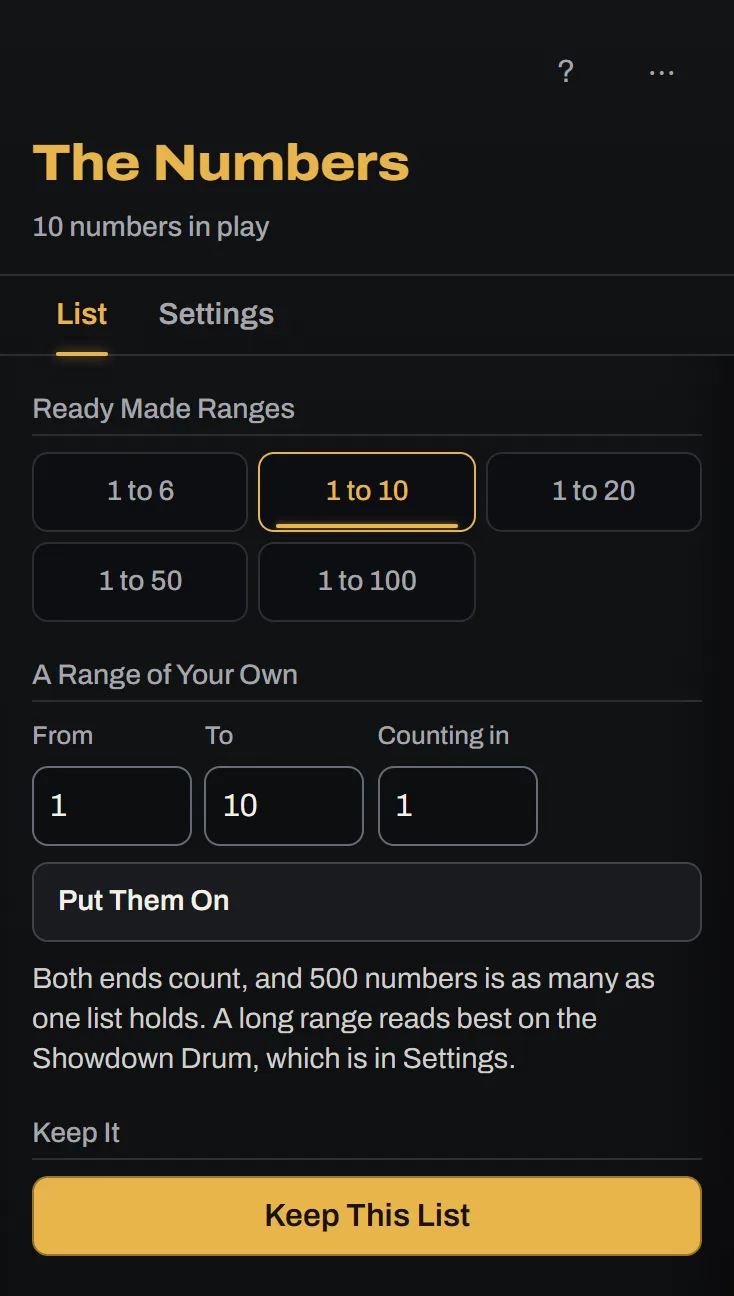
The number picker fills the wheel from a range. Pick a ready-made one, or set From, To, and Counting In and press Put Them On. Both ends count, and a range can hold up to 500. Keep this list saves the range with your spinners.
 Open the picture full size, opens in a new tab
A long range reads best on the Showdown Drum. Set After a Win to Retires to draw numbers without repeats.
Back to contentsColors
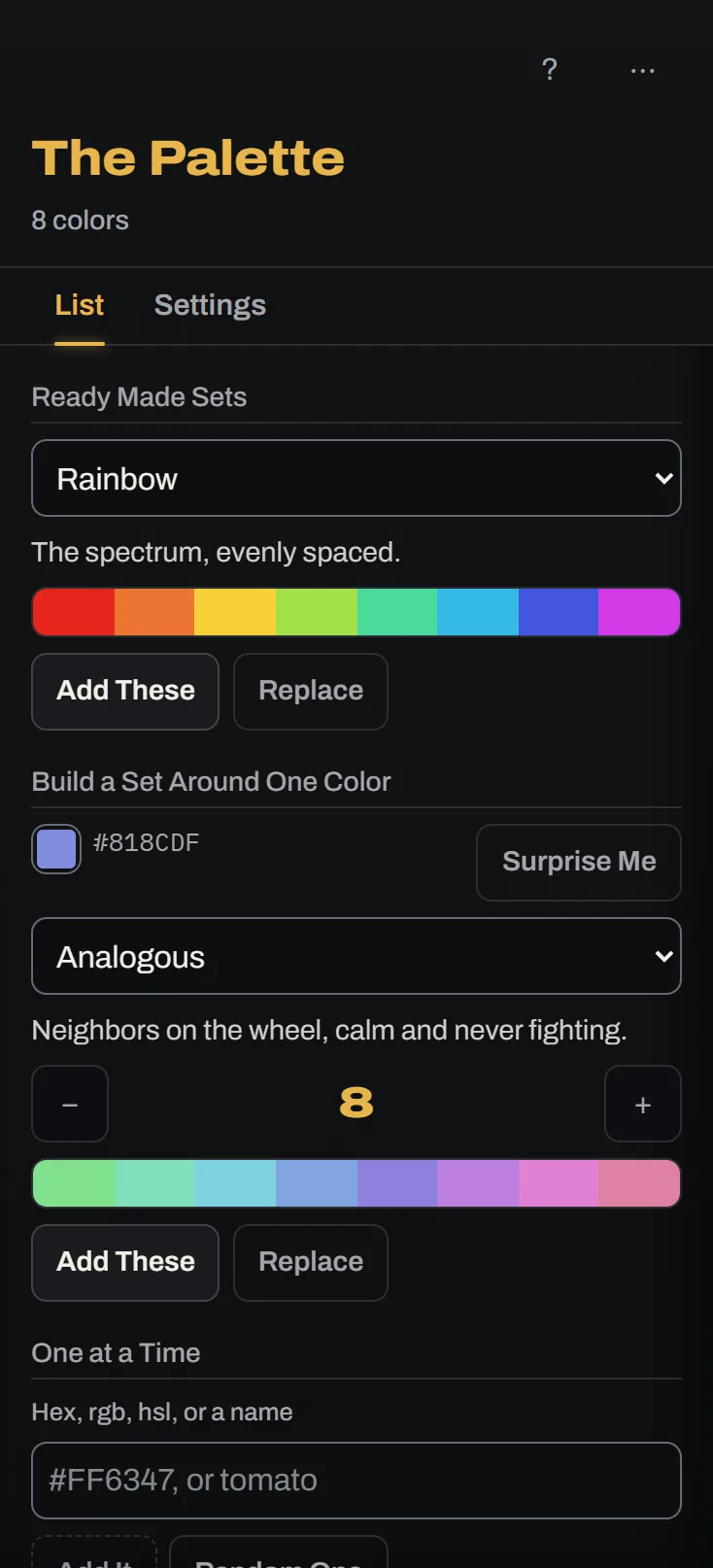
The color picker spins a wheel of colors and gives the winner's name and codes. Fill it from a ready-made set, build a set around one color, add colors one at a time, lift them out of a picture, or paste a list of codes.
 Open the picture full size, opens in a new tab
Ready-Made Lists
All Tools has lists ready to spin, from yes or no to every NFL team. Change one and it becomes your own copy, the same as the examples.
The sports teams, the countries, and the states have a panel of their own. Pick a whole group, or open one and tick the ones you want. Choose what the wedges show: a team's name, its city and name, or its code, and a place's flag and name, its flag alone, or its name alone. Press Keep this list to save it with your spinners.
Press Open in a Large View at the end of the line that counts what is selected, to see every group open at once, such as all of a league's divisions or every region of the world, and tick from there.
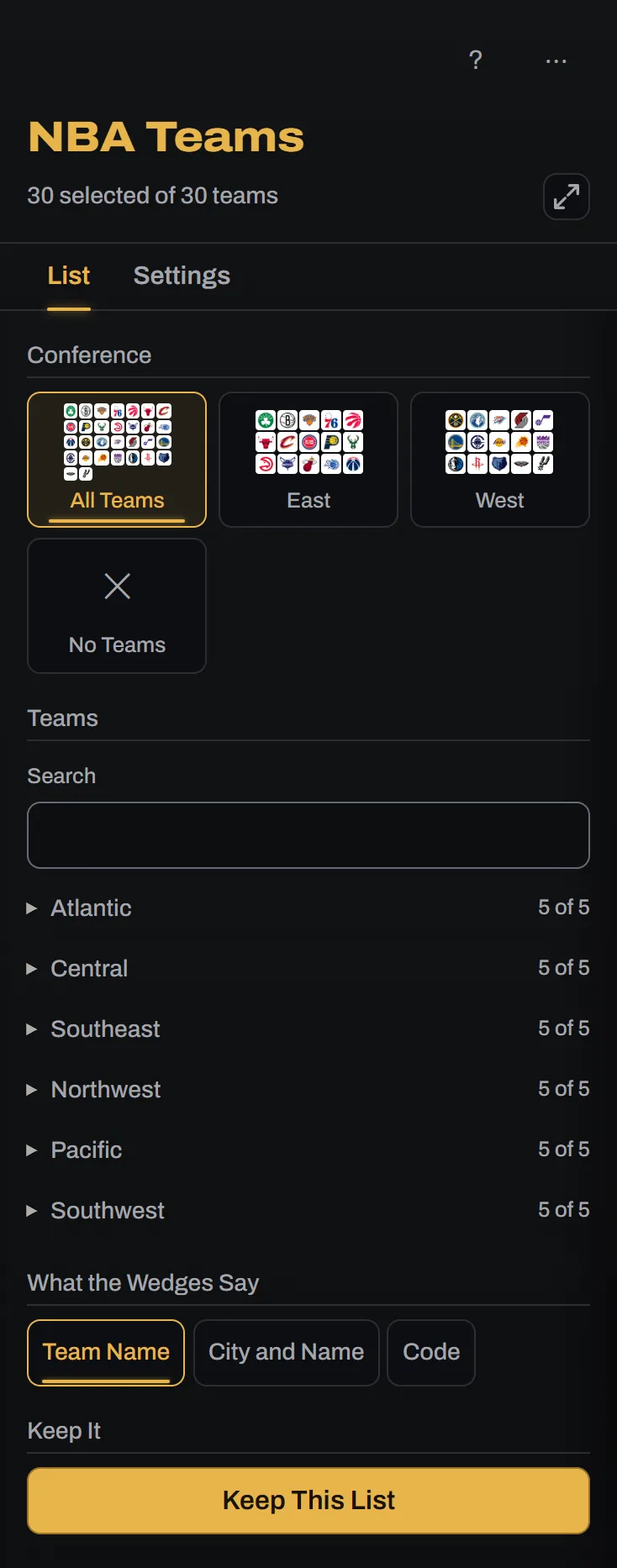
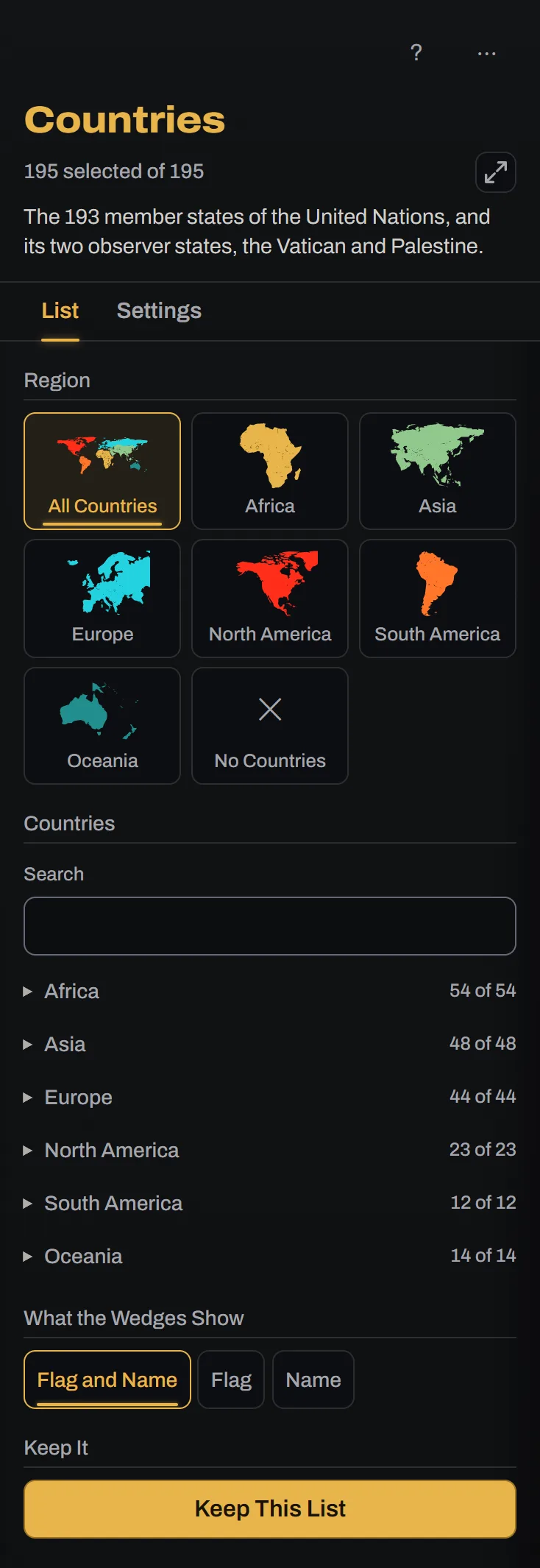
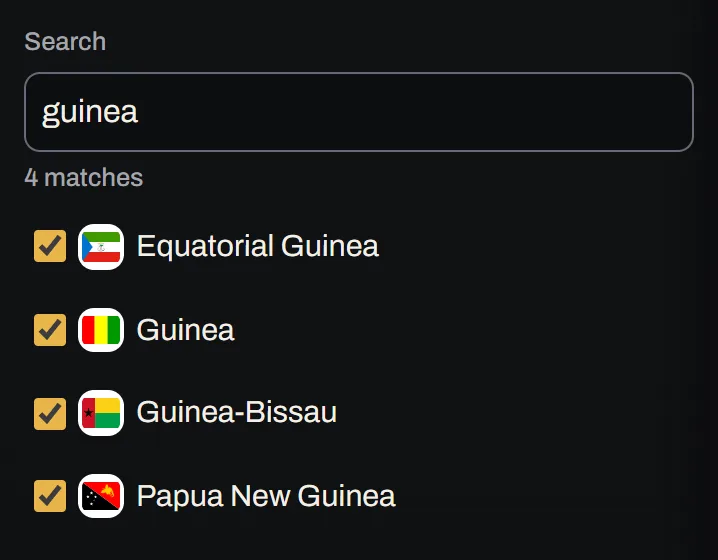
A long list, such as every country or every NFL team, has a search box over its groups. Type the start of any word in a name, and what it finds takes the place of the groups. Tick what you want from there, then clear the box to see the groups again. A state's two letters, such as TX, find it too.
 Open the picture full size, opens in a new tab
On a Projector
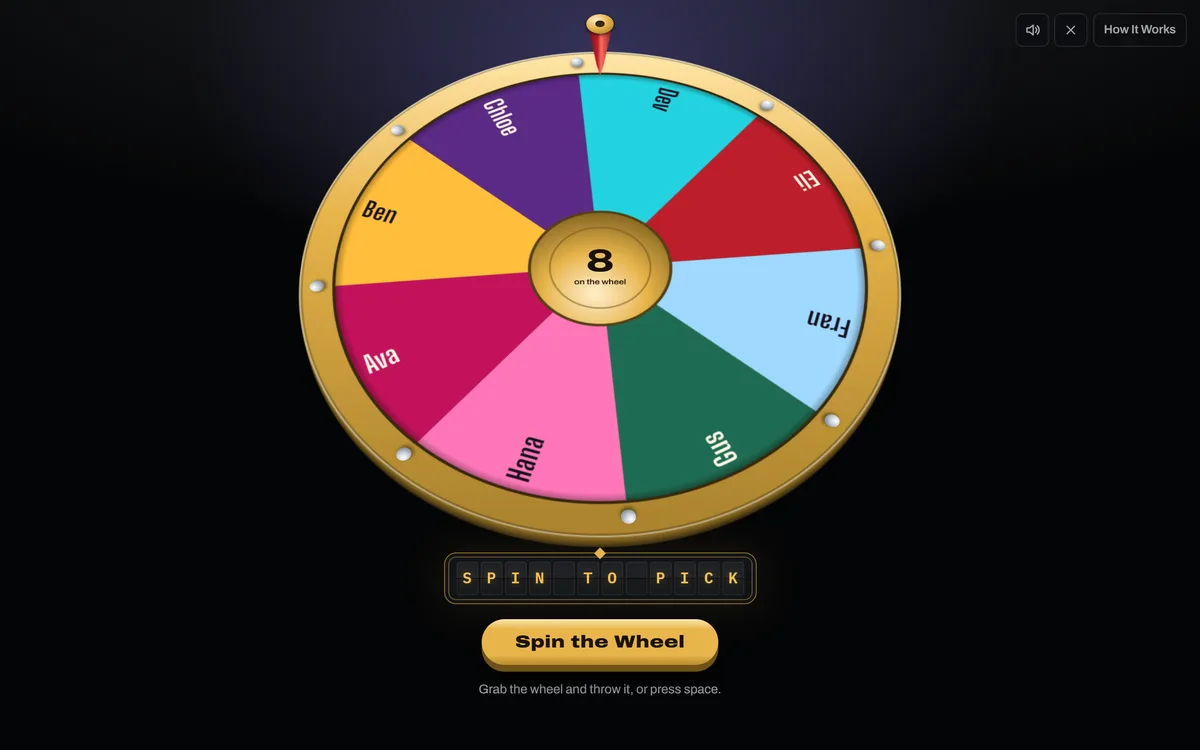
Press the Full screen button in the corner of the stage, or F. The bar, the list, and the ads step aside and the stage fills the screen. Press Esc, or the Leave full screen button in the corner, to come back.
 Open the picture full size, opens in a new tab
Keyboard and Screen Readers
- The first Tab on any page reaches Skip to the Page, which jumps past the bar.
- Space spins, flips, or rolls whenever you are not in a box or on a button.
- F turns full screen on and off.
- / puts the cursor in the search at the top of the page.
- In a dice game, the number keys hold a die by its place.
- If one of these keys goes off when you don't mean it to, from a stray key press or speech input, turn it off under Accessibility in Settings. The on-screen buttons and the search still work.
- Turn off Moving Lights, also under Accessibility, to keep the bulbs still. When it's on, they chase while something spins and blink when it lands.
- Turn off Show Reactions, also under Accessibility, to hide the reactions people send in a room on your screen alone. With Moving Lights off, or a device that asks for less motion, a reaction sits still rather than floating up.
- Turn on Keep Messages Up and the strip at the bottom, Undo and every other message, stays on screen instead of going after a few seconds. Undo already stays up while you use the keyboard.
- Esc closes a menu or a panel, or leaves full screen.
- A screen reader hears the winner when the board shows it, each entry's chance when it reaches the weight, and every message on the strip at the bottom.
On a Phone
On a phone the stage comes first and the list sits under it, so scroll down to change it. In a room the stage and its button fit the first screen, and the list and the people are under it. Throw the wheel with your thumb. The places to go sit in the tab bar along the bottom. Spin, Flip, Roll, and Rooms open the same menus there as in the bar on a wider screen, and All Tools opens the catalogue. The search, History, and settings stay at the top right as their pictures. Sound is in the stage's corner.
Back to contents